helpdesk@zelt.ae
 Live Chat
  Login
Login 
WordPress Security – 19 Steps to Lock Down Your Site
- Category : WordPress
- Posted on : May 20, 2019
- Views : 16,715
- By : Tadashi P.
When it comes to WordPress security, there are a lot of things you can do to lock down your site to prevent hackers and vulnerabilities from affecting your ecommerce site or blog. The last thing you want to happen is to wake up one morning to discover your site in shambles. So today we are going to be sharing a lot of tips, strategies, and techniques you can use to better your WordPress security and stay protected.
If you’re a Host SEO client, you don’t need to worry about a lot of these, as we offer free hack fixes! But even with this guarantee, you should always follow the best security practices.
Is WordPress Secure?
The first question you’re probably wondering, is WordPress secure? For the most part, yes. However, WordPress usually gets a bad rap for being prone to security vulnerabilities and inherently not being a safe platform to use for a business. More often than not this is due to the fact that users keep following industry-proven security worst-practices.
Fundamentally, security is not about perfectly secure systems. Such a thing might well be impractical, or impossible to find and/or maintain. What security is though is risk reduction, not risk elimination. It’s about employing all the appropriate controls available to you, within reason, that allow you to improve your overall posture reducing the odds of making yourself a target, subsequently getting hacked. – WordPress Security Codex
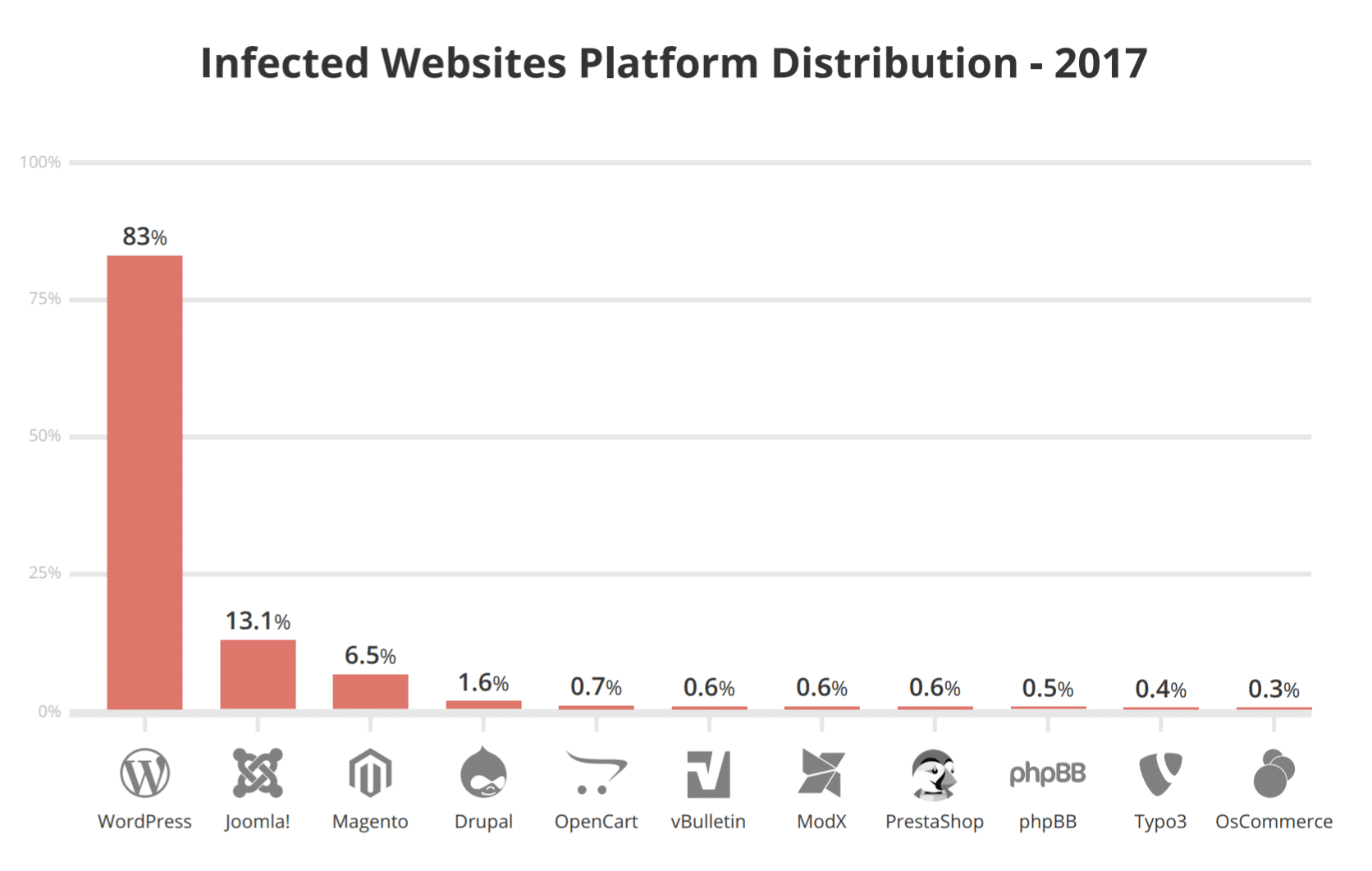
Now, this is not to say vulnerabilities don’t exist. According to a Q3 2017 study by Sucuri, a multi-platform security company, WordPress continues to lead the infected websites they worked on (at 83%). This is up from 74% in 2016.
WordPress powers over 33% of all websites on the internet, and with hundreds of thousands of theme and plugin combinations out there, it’s not surprising that vulnerabilities exist and are constantly being discovered. However, there is also a great community around the WordPress platform, to ensure these things get patched ASAP. As of 2019, the WordPress security team is made up of approximately 50 (up from 25 in 2017) experts including lead developers and security researchers — about half are employees of Automattic and a number work in the web security field.
WordPress Vulnerabilities
Check out some of the different types of WordPress security vulnerabilities below.
- Backdoors
- Pharma Hacks
- Brute-force Login Attempts
- Malicious Redirects
- Cross-site Scripting (XSS)
- Denial of Service
Backdoors
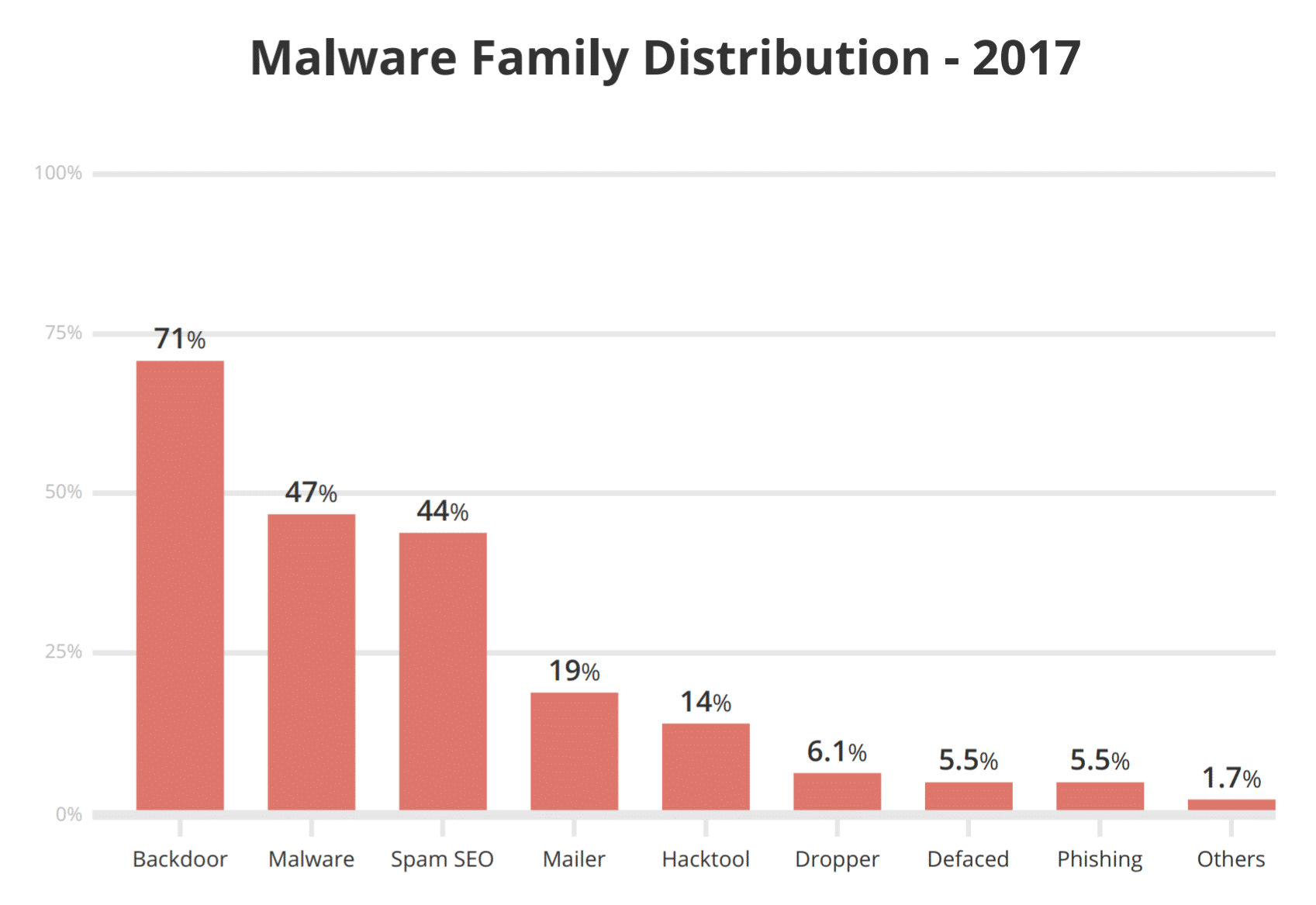
The aptly named backdoor vulnerability provides hackers with hidden passages bypassing security encryption to gain access to WordPress websites via abnormal methods – wp-Admin, SFTP, FTP, etc. Once exploited, backdoors enable hackers to wreak havoc on hosting servers with cross-site contamination attacks – compromising multiple sites hosted on the same server. In Q3 2017 Sucuri reported that backdoors continue to be one of the many post-hack actions attackers take, with 71% of the infected sites having some form of backdoor injection.
Backdoors are often encrypted to appear like legitimate WordPress system files, and make their way through to WordPress databases by exploiting weaknesses and bugs in outdated versions of the platform. The TimThumb fiasco was a prime example of backdoor vulnerability exploiting shady scripts and outdated software compromising millions of websites.
Fortunately, prevention and cure of this vulnerability is fairly simple. You can scan your WordPress site with tools like SiteCheck which can easily detect common backdoors. Two-factor authentication, blocking IPs, restricting admin access and preventing unauthorized execution of PHP files easily takes care of common backdoor threats, which we will go into more below. Canton Becker also has a great post on cleaning up the backdoor mess on your WordPress installations.
Pharma Hacks
The Pharma Hack exploit is used to insert rogue code in outdated versions of WordPress websites and plugins, causing search engines to return ads for pharmaceutical products when a compromised website searched for. The vulnerability is more of a spam menace than traditional malware, but gives search engines enough reason to block the site on accusations of distributing spam.
Moving parts of a Pharma Hack include backdoors in plugins and databases, which can be cleaned up following the instructions from this Sucuri blog. However, the exploits are often vicious variants of encrypted malicious injections hidden in databases and require a thorough clean-up process to fix the vulnerability. Nevertheless, you can easily prevent Pharma Hacks by using recommend WordPress hosting providers with up to date servers and regularly updating your WordPress installations, themes, and plugins. Hosts like Host SEO also offer free hack fixes.
Brute-force Login Attempts
Brute-force login attempts use automated scripts to exploit weak passwords and gain access to your site. Two-step authentication, limiting login attempts,monitoring unauthorized logins, blocking IPs and using strong passwords are some of the easiest and highly effective ways to prevent brute-force attacks. But unfortunately, a number of WordPress website owners fail to perform these security practices whereas hackers are easily able to compromise as much as 30,000 websites in a single day using brute-force attacks.
Malicious Redirects
Malicious redirects create backdoors in WordPress installations using FTP, SFTP, wp-admin, and other protocols and inject redirection codes into the website. The redirects are often placed in your .htaccess file and other WordPress core files in encoded forms, directing the web traffic to malicious sites. We will go through some ways you can prevent these in our WordPress security steps below.
Cross-Site Scripting (XSS)
Cross-Site Scripting (XSS) is when a malicious script is injected into a trusted website or application. The attacker uses this to send malicious code, typically browser-side scripts, to the end user without them knowing it. The purpose is usually to grab cookie or session data or perhaps even rewrite HTML on a page.
According to WordFence, Cross-Site Scripting vulnerabilities are the most common vulnerability found in WordPress plugins by a significant margin.
Denial of Service
Perhaps the most dangerous of them all, Denial of Service (DoS) vulnerability exploits errors and bugs in the code to overwhelm the memory of website operating systems. Hackers have compromised millions of websites and raked in millions of dollars by exploiting outdated and buggy versions of WordPress software with DoS attacks. Although financially motivated cybercriminals are less likely to target small companies, they tend to compromise outdated vulnerable websites in creating botnet chains to attack large businesses.
Even the latest versions of WordPress software cannot comprehensively defend against high-profile DoS attacks, but will at least help you to avoid getting caught in the crossfire between financial institutions and sophisticated cybercriminals. And don’t forget about October 21st, 2016. This was the day the internet went down due to a DNS DDoS attack. Read more about why it is important to use a premium DNS provider to increase your WordPress security.
WordPress Security Guide 2019
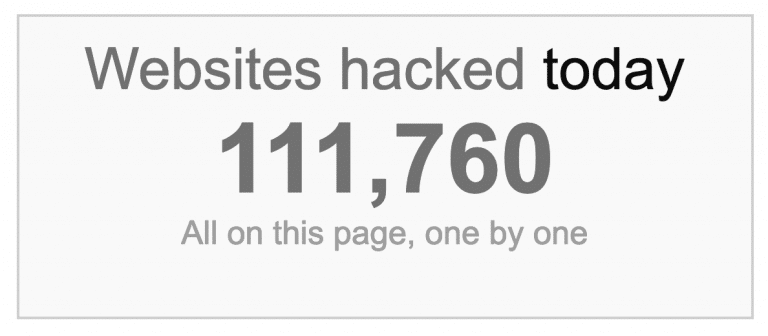
According to internet live stats over 100,000 websites are hacked every day. ? That’s why it’s so important to take some time and go through the following recommendations below on how to better harden your WordPress security.
We will make sure to keep this post up to date with relevant information as things change with the WordPress platform and new vulnerabilities emerge.
- Secure WordPress Hosting
- Use Latest PHP Version
- Clever Usernames and Passwords
- Latest Versions
- Lock Down WordPress Admin
- Two-Factor Authentication
- HTTPS – SSL Certificate
- Hardening wp-config.php
- Disable XML-RPC
- Hide WordPress Version
- HTTP Security Headers
- WordPress Security Plugins
- Database Security
- Secure Connections
- File and Server Permissions
- Disable Editing in Dashboard
- Prevent Hotlinking
- Always Take WordPress Backups
- DDoS Protection
1. Invest in Secure WordPress Hosting
When it comes to WordPress security, there is much more than just locking down your site, although we’ll give you the best recommendations on how to do that below. There is also web server-level security for which your WordPress host is responsible. We take security very seriously here at Host SEO and handle a lot of these issues for our clients.
It’s very important that you choose a host that you can trust with your business. Or if you are hosting WordPress on your own VPS, then you need to have the technical knowledge to do these things yourself.
Server hardening is the key to maintaining a thoroughly-secure WordPress environment. It takes multiple layers of hardware and software level security measures to ensure the IT infrastructure hosting WordPress sites is capable of defending against sophisticated threats, both physical and virtual.
For this reason, servers hosting WordPress should be updated with the latest operating system and (security) software as well as thoroughly tested and scanned for vulnerabilities and malware. A good example of this is when Host SEO had to patch NGINX for OpenSSL security vulnerabilities that were discovered.
Server-level firewalls and intrusion detection systems should be in place before installing WordPress on the server to keep it well-protected even during the WordPress installation and website construction phases. However, every software installed on the machine intended to protect WordPress content should be compatible with the latest database management systems to maintain optimal performance. The server should also be configured to use secure networking and file transfer encryption protocols (such as SFTP instead of FTP) to hide away sensitive content from malicious intruders.
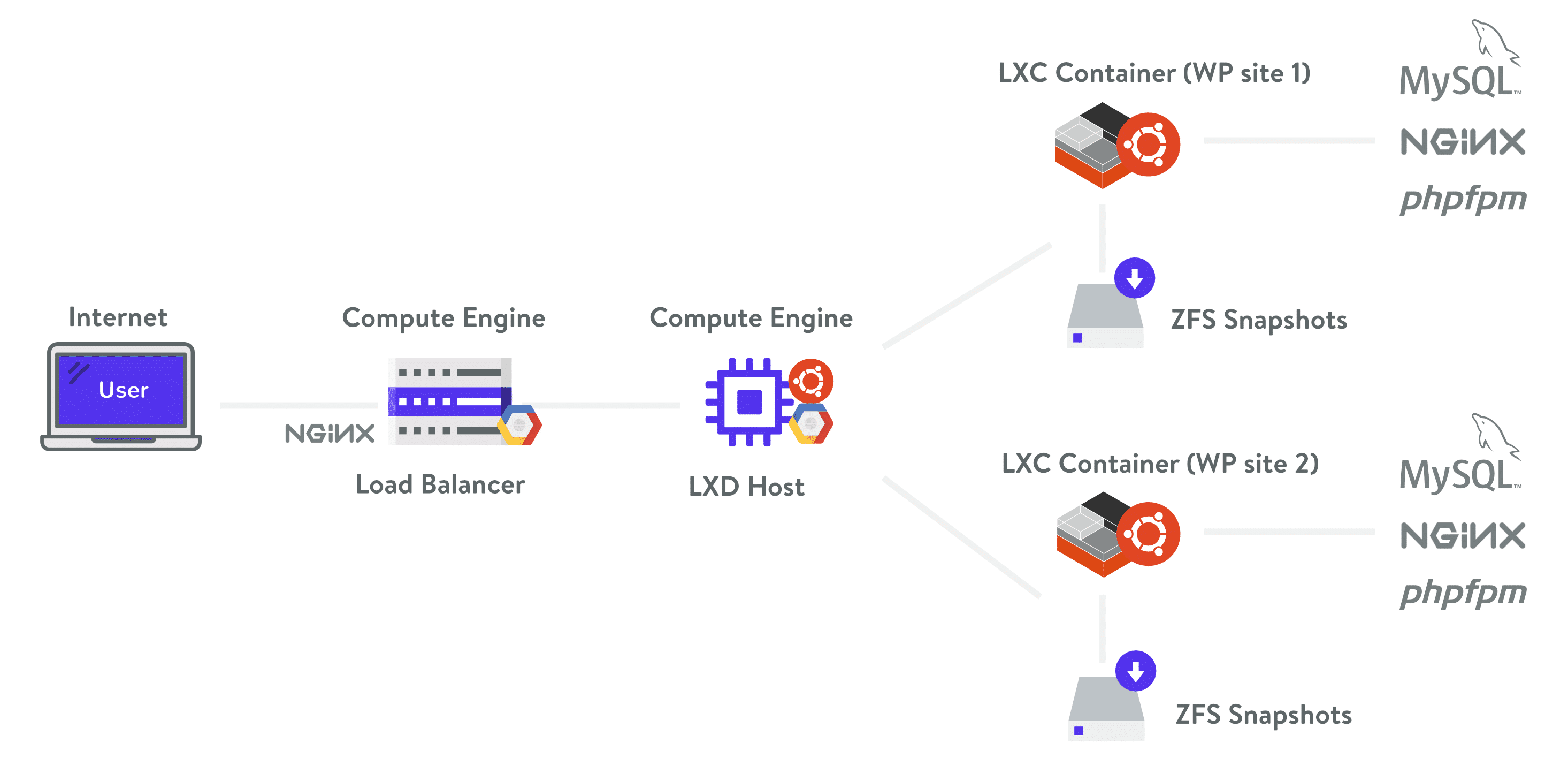
We use Google Cloud Platform here at Host SEO for all of our WordPress customers to ensure secure WordPress hosting. A big advantage of this is that it is built on a security model that has been built upon over the course of 15 years, and currently secures products and services like Gmail, Search, etc. Google currently employs more than 500 full-time security professionals.
Host SEO also uses Linux containers (LXC), and LXD to orchestrate them, on top of Google Cloud Platform which enables us to completely isolate not just each account, but each separate WordPress site. Security is built into our architecture from the beginning and this is a much more secure method than offered by other competitors.
2. Use Latest PHP Version
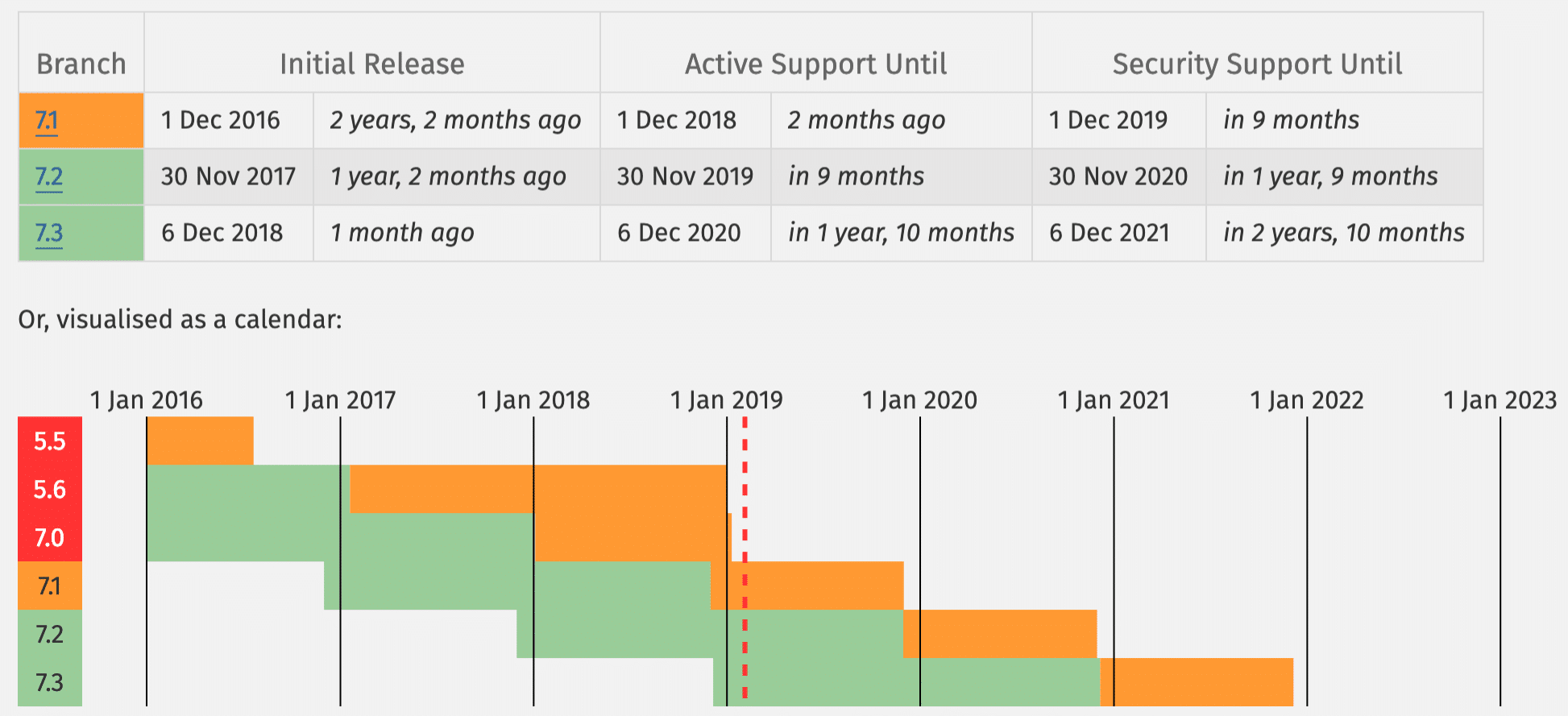
PHP is the backbone of your WordPress site and so using the latest version on your server is very important. Each major release of PHP is typically fully supported for two years after its release. During that time, bugs and security issues are fixed and patch on a regular basis. As of right now, anyone running on version PHP 7.0 or below no longer has security support and are exposed to unpatched security vulnerabilities
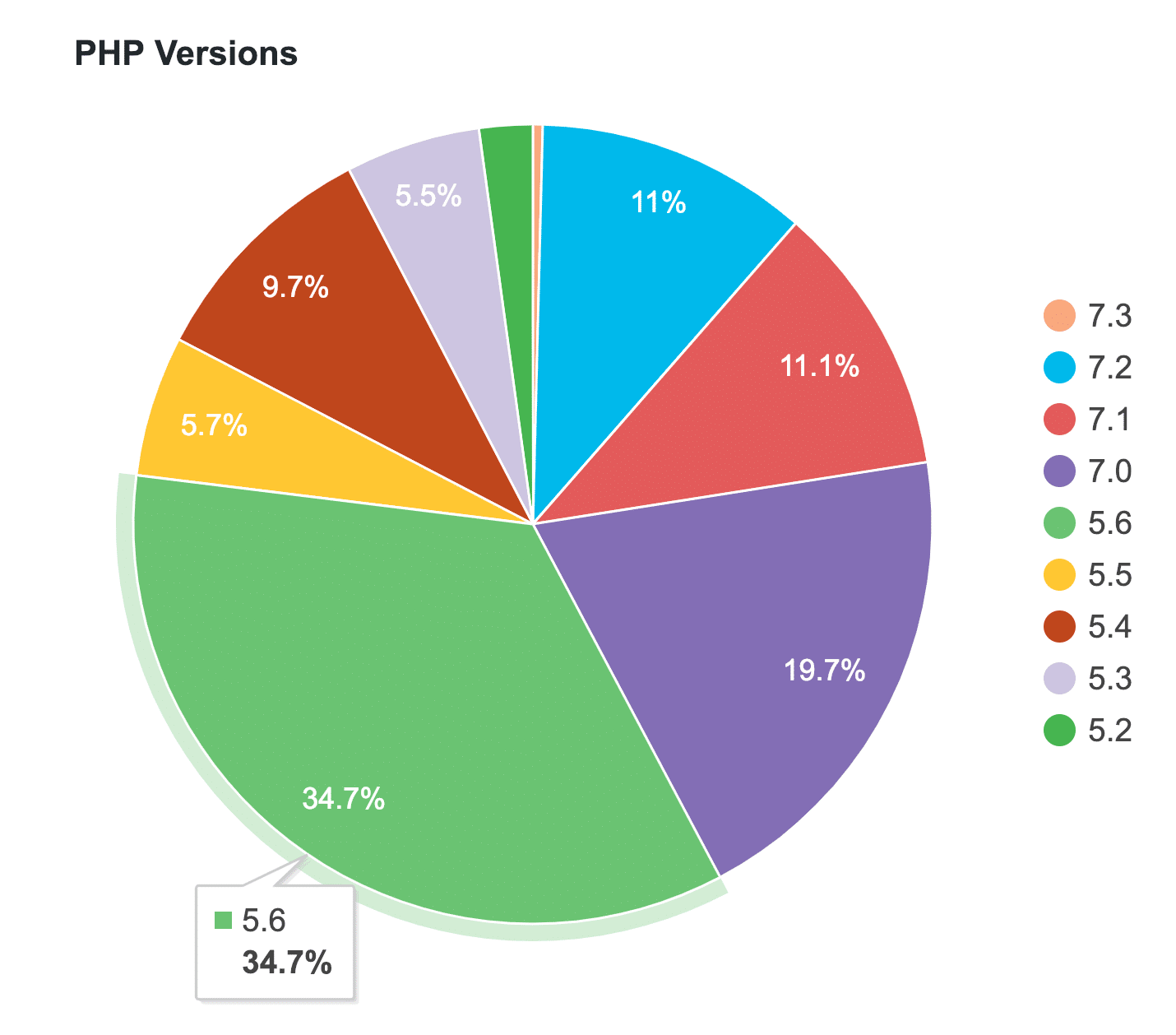
And guess what? According to the official WordPress Stats page, as of writing this, over 57% of WordPress users are still on PHP 5.6 or lower. If you combine this with PHP 7.0, a whopping 77.5% of users are currently using PHP versions that is no longer supported. That is scary!
Sometimes it does take businesses and developers time to test and ensure compatibility with their code, but they have no excuse to run on something without security support. Not to mention the huge performance impact running on older versions has.
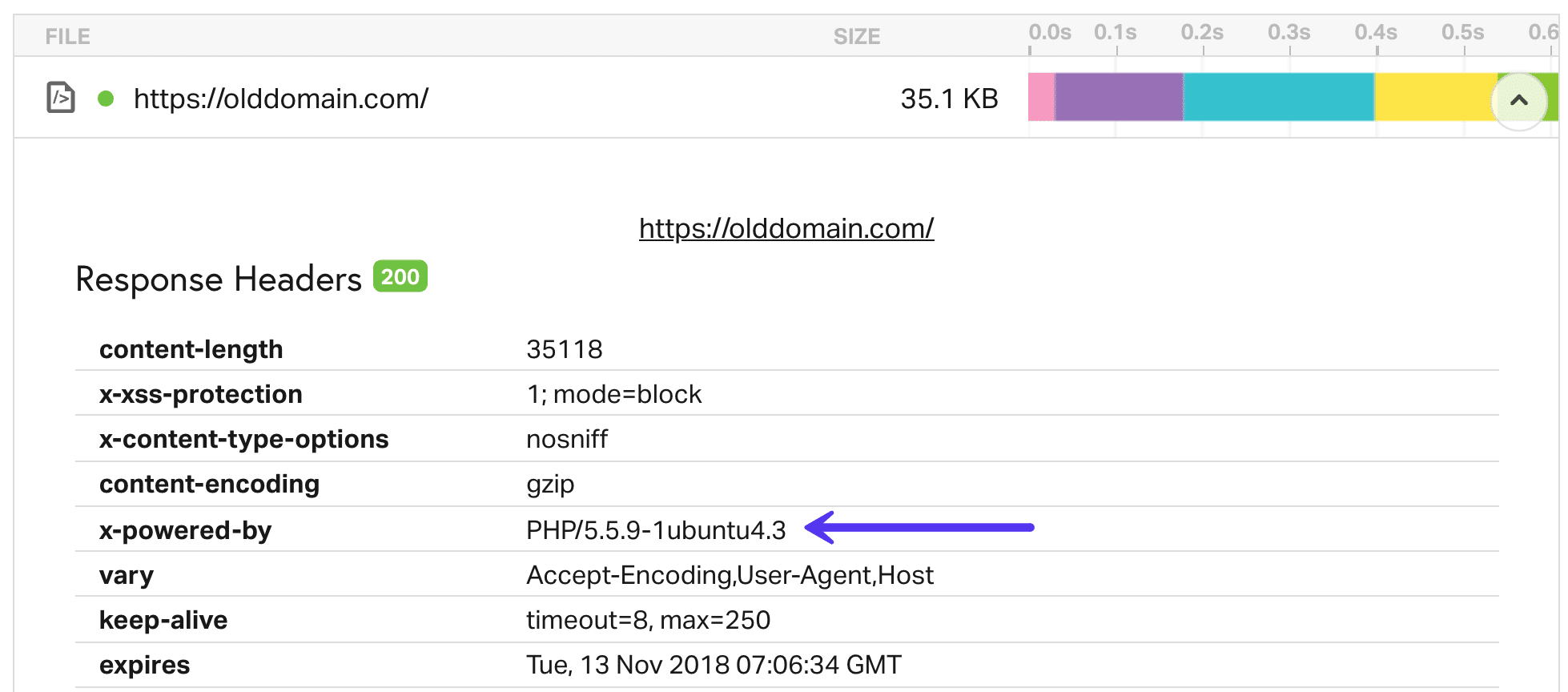
Don’t know which version of PHP you are currently on? Most hosts typically include this in a header request on your site. A quick way to check is to run your site through Pingdom. Click into the first request and look for a X-Powered-By parameter. Typically this will show the version of PHP your web server is currently using. However, some hosts will remove this header due to security reasons. Host SEO removes this header by default to keep your site safe.
Here at Host SEO we only recommend using stable and supported versions of PHP, including 7.1, 7.2, and 7.3. PHP 5.6 and 7.0 will soon be phased out. You can even switch between PHP versions with a click of a button from within the Host SEO dashboard.
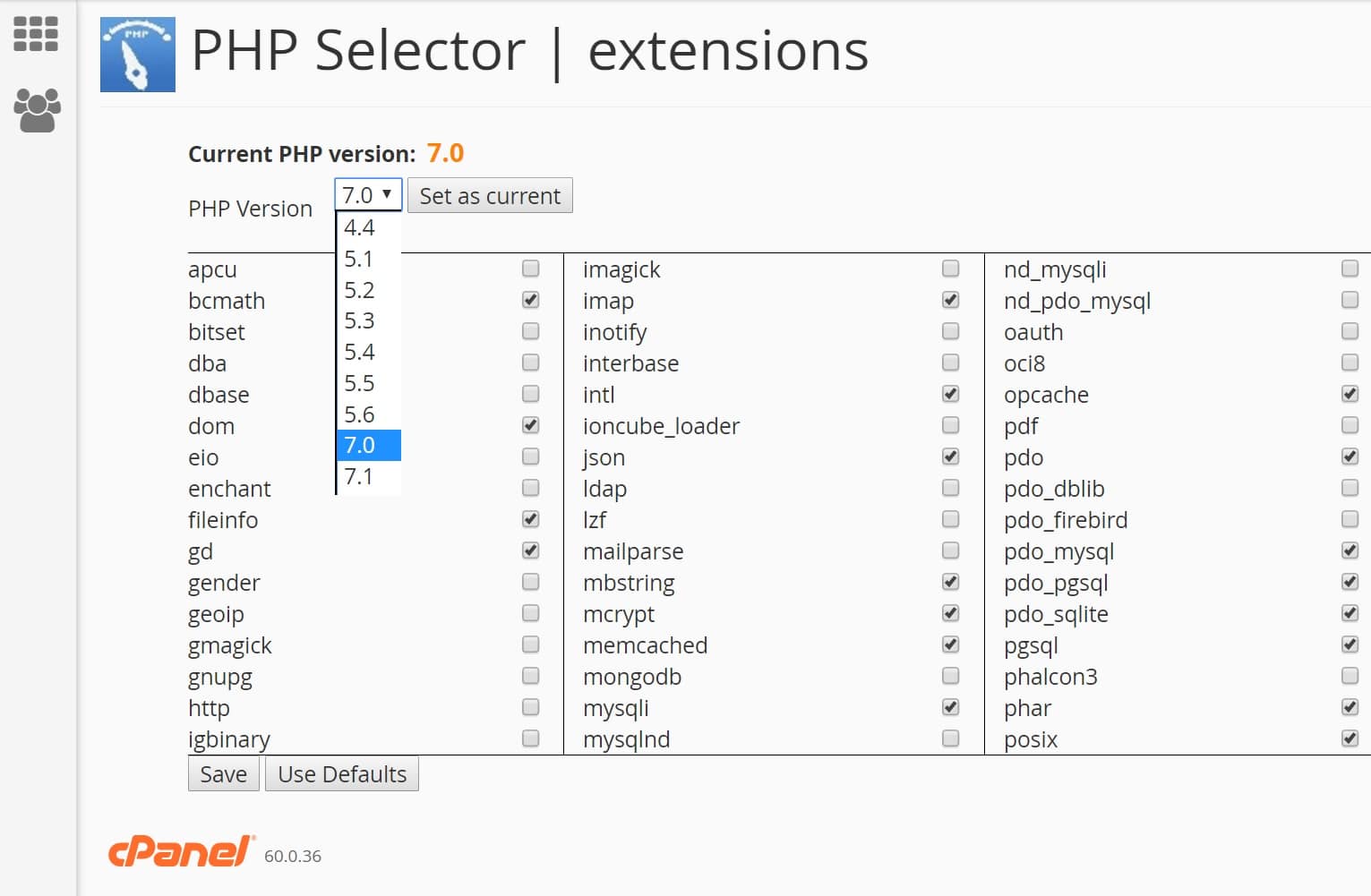
If you are on a WordPress host that uses cPanel, you can usually switch between PHP versions by clicking into “PHP Select” under the software category.
3. Use Clever Usernames and Passwords
Surprisingly one of the best ways to harden your WordPress security is to simply use clever usernames and passwords. Sounds pretty easy right? Well, check out SplashData’s 2018 annual list of the most popular passwords stolen throughout the year (sorted in order of popularity).
- 123456
- password
- 123456789
- 12345678
- 12345
- 111111
- 1234567
- sunshine
- qwerty
- iloveyou
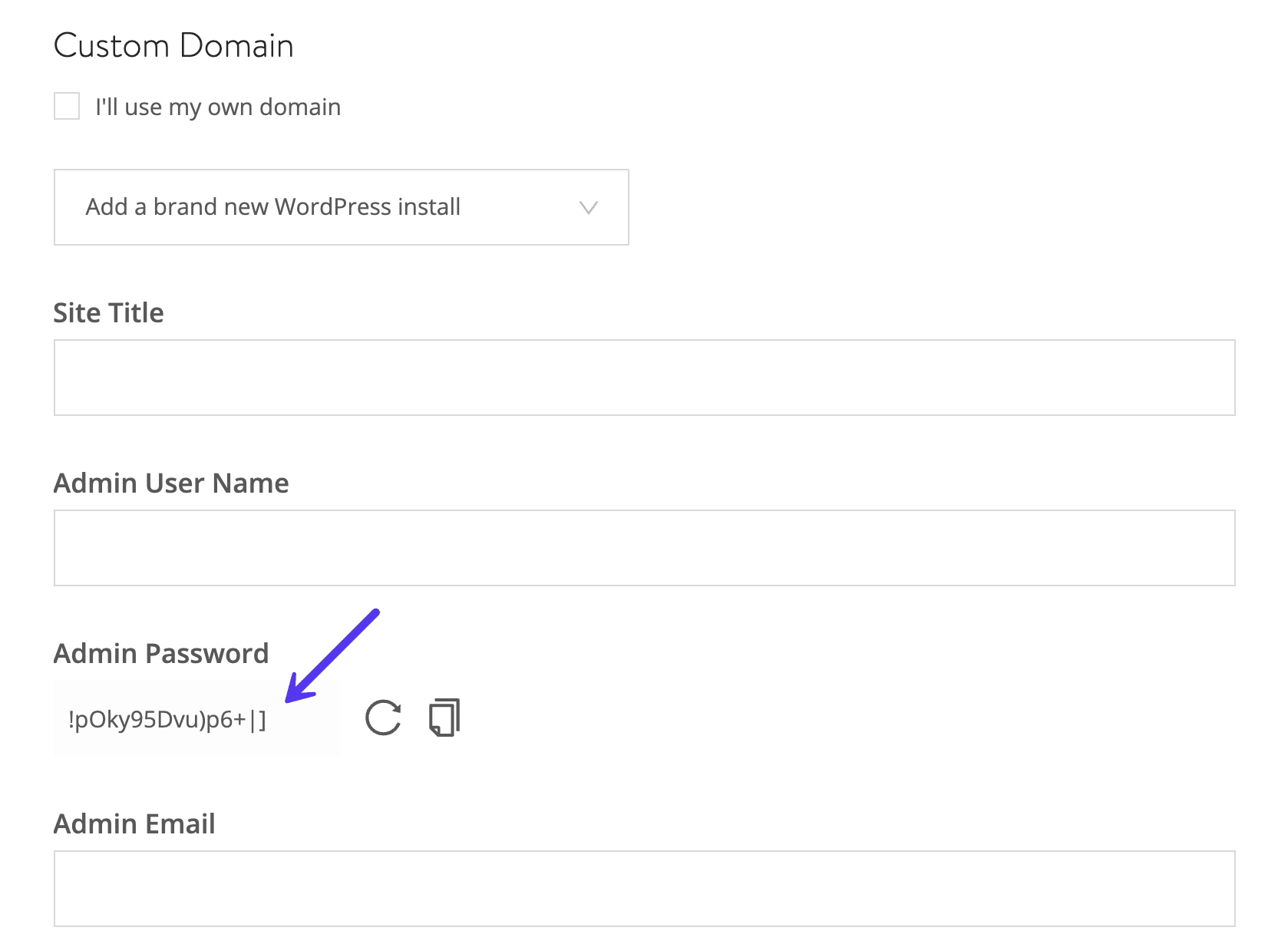
That is right! The most popular password is “123456”, followed by an astonishing “password”. That is one reason why here at Host SEO on new WordPress installs we actually force a complex password to be used for your wp-admin login (as seen below on our one-click install process). This is not optional.
The core WordPress wp_hash_password function uses the phpass password hashing framework and eight passes of MD5-based hashing.
Some of the best security starts from the basics. Google has some great recommendations on how to choose a strong password. Or you can use an online tool like Strong Password Generator.
It is also important to use different passwords for every website. The best way to store them is locally in an encrypted database on your computer. A good free tool for this is KeePass. If you don’t want to go down this route there are also online password managers such as 1Password or LastPass. Even though your data is hosted securely in the cloud, these are generally safer since you aren’t using the same password across multiple sites. It also keeps you from using sticky notes. ?
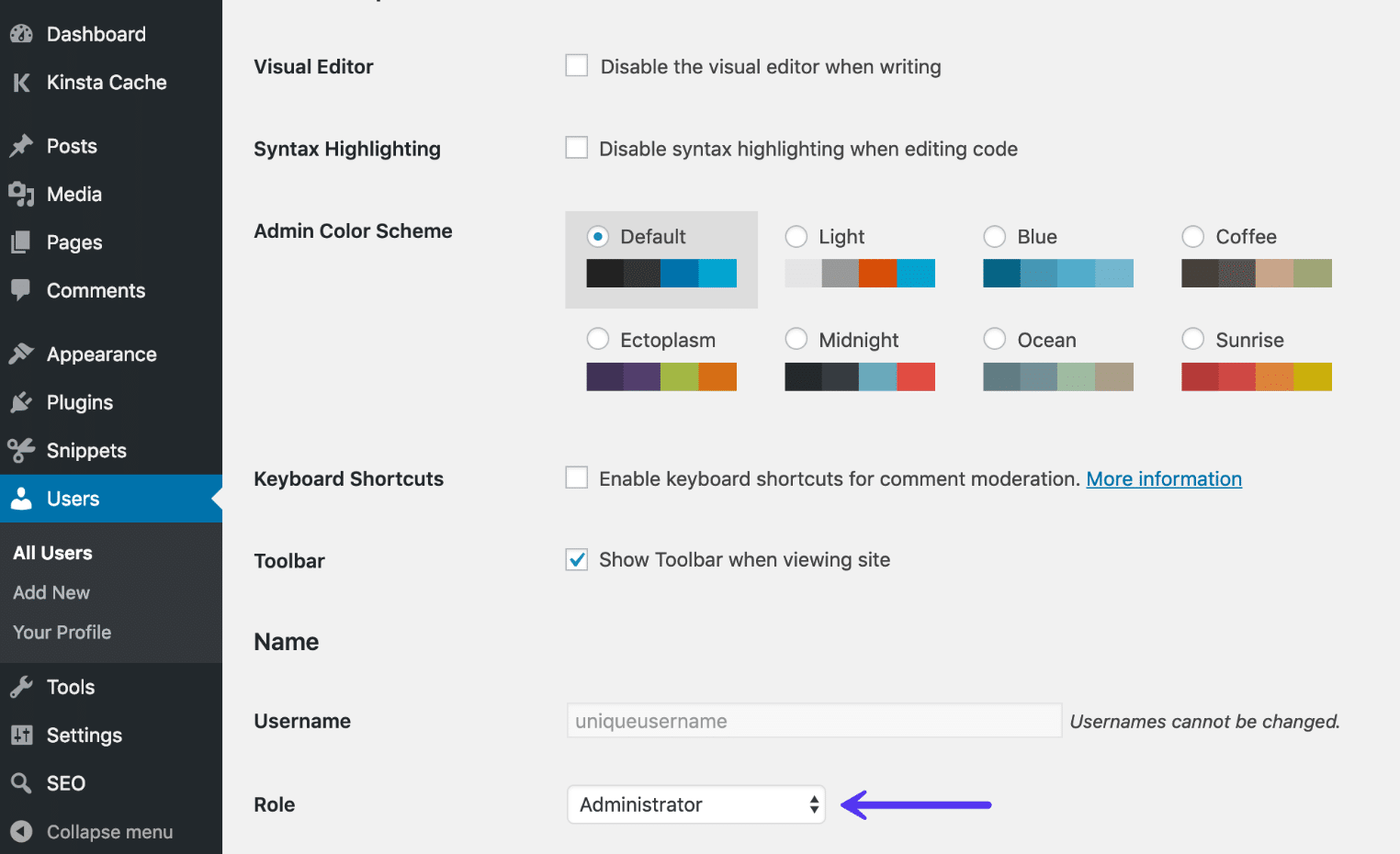
And as far as your WordPress install goes you should never use the default “admin” username. Create a unique WordPress username for the administrator account and delete the “admin” user if it exists. You can do this by adding a new user under “Users” in the dashboard and assigning it the “Administrator” profile (as seen below).
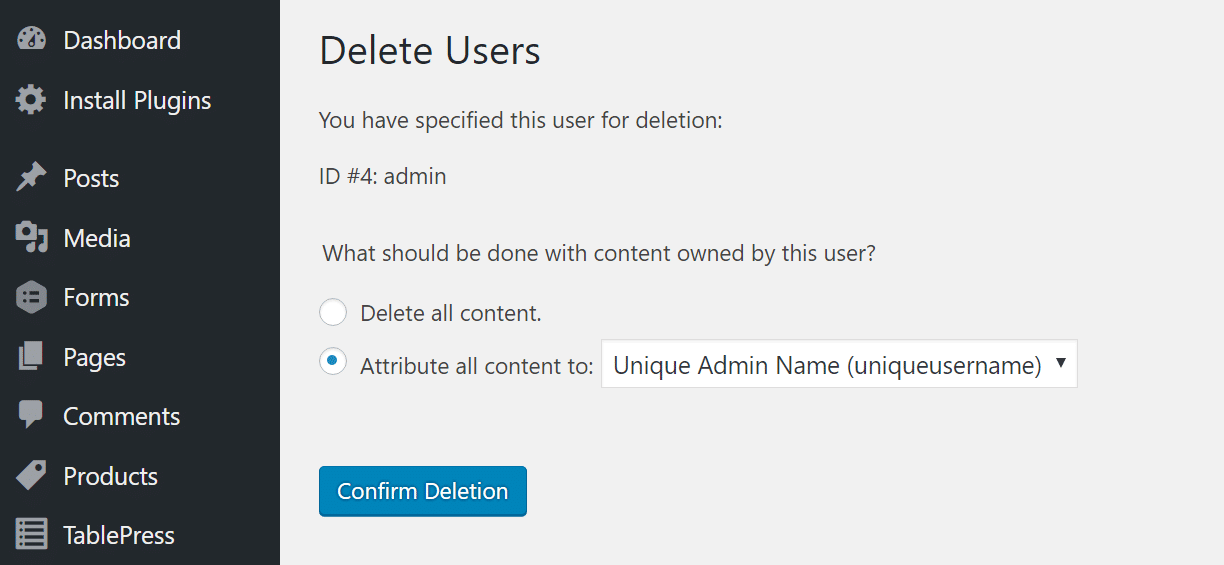
Once you assign the new account the administrator role you can go back and delete the original “Admin” user. Make sure that when you click on delete that you choose the “Attribute all content to” option and select your new administrator profile. This will assign the person as the author of those posts.
You can also rename your current admin username manually in phpMyAdmin with the following command. Make sure to backup your database before editing tables.
UPDATE wp_users SET user_login = 'newcomplexadminuser' WHERE user_login = 'admin';4. Always Use the Latest Version of WordPress, Plugins, and Themes
Another very important way to harden your WordPress security is to always keep it up to date. This includes WordPress core, plugins, and themes (both those from the WordPress repository and premium). These are updated for a reason, and a lot of times these include security enhancements and bug fixes. We recommend you to read our in-depth guide on how WordPress automatic updates work.
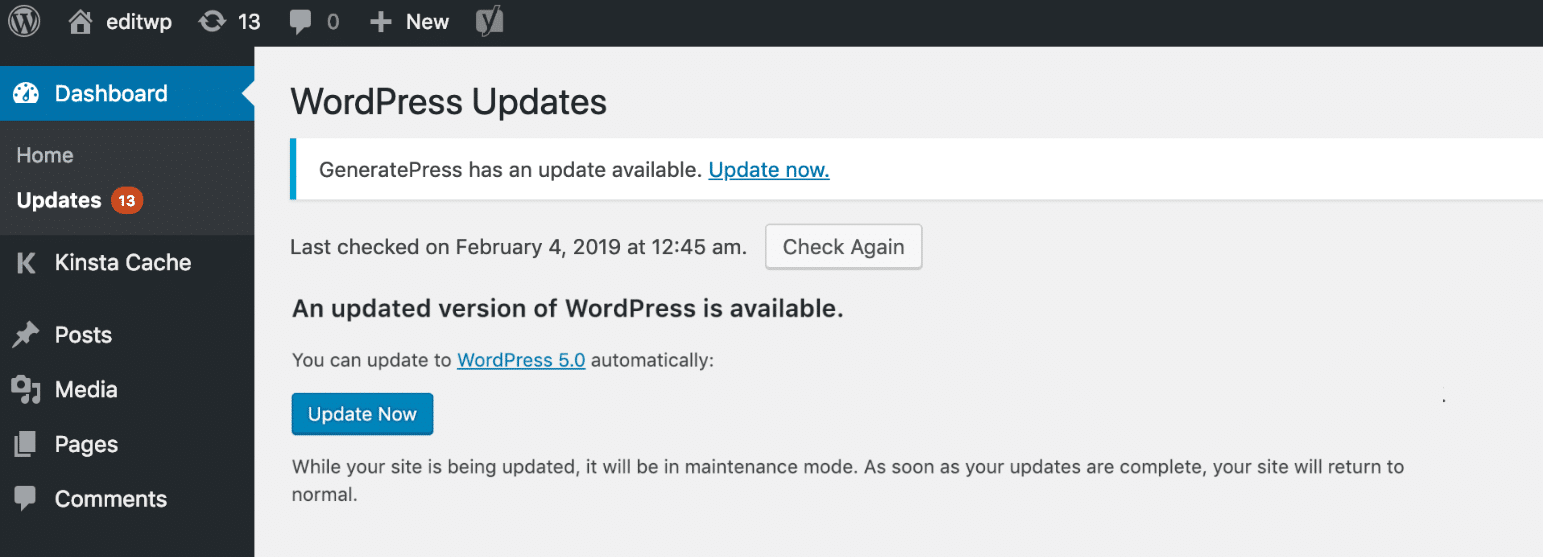
Unfortunately, millions of businesses out there running outdated versions of WordPress software and plugins, and still believe they’re on the right path of business success. They cite reasons for not updating such as “their site will break” or “core modifications will be gone” or “plugin X won’t work” or “they just don’t need the new functionality”.
In fact, websites break mostly because of bugs in older WordPress versions. Core modifications are never recommended by the WordPress team and expert developers who understand the risks involved. And WordPress updates mostly include must-have security patches along with the added functionality required to run the latest plugins.
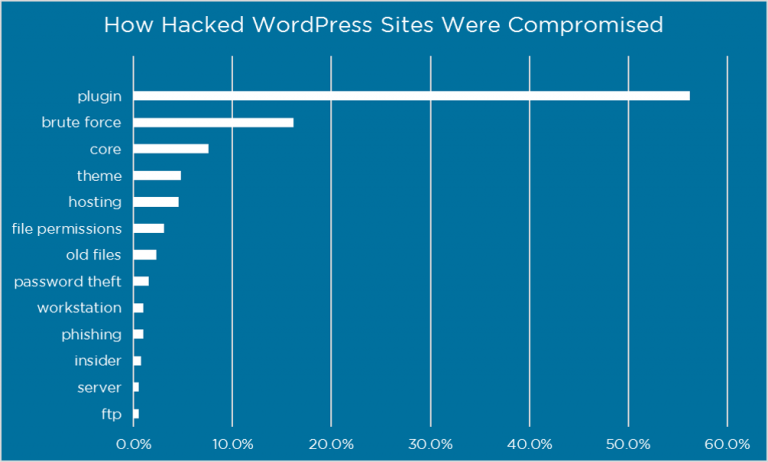
Did you know that it has been reported that plugin vulnerabilities represent 55.9% of the known entry points for hackers? That is what WordFence found in a study where they interviewed over 1,000 WordPress site owners that had been victims of attacks. By updating your plugins you can better ensure that you aren’t one of these victims.
It is also recommended that you only install trusted plugins. The “featured” and “popular” categories in the WordPress repository can be a good place to start. Or download it directly from the developer’s website. We strongly discourage any use of nulled WordPress plugins and themes. First off, you never know what the modified code might contain. This can easily end up in your site getting hacked. Not paying for premium WordPress plugins also doesn’t help the community grow as a whole. We need to support developers.
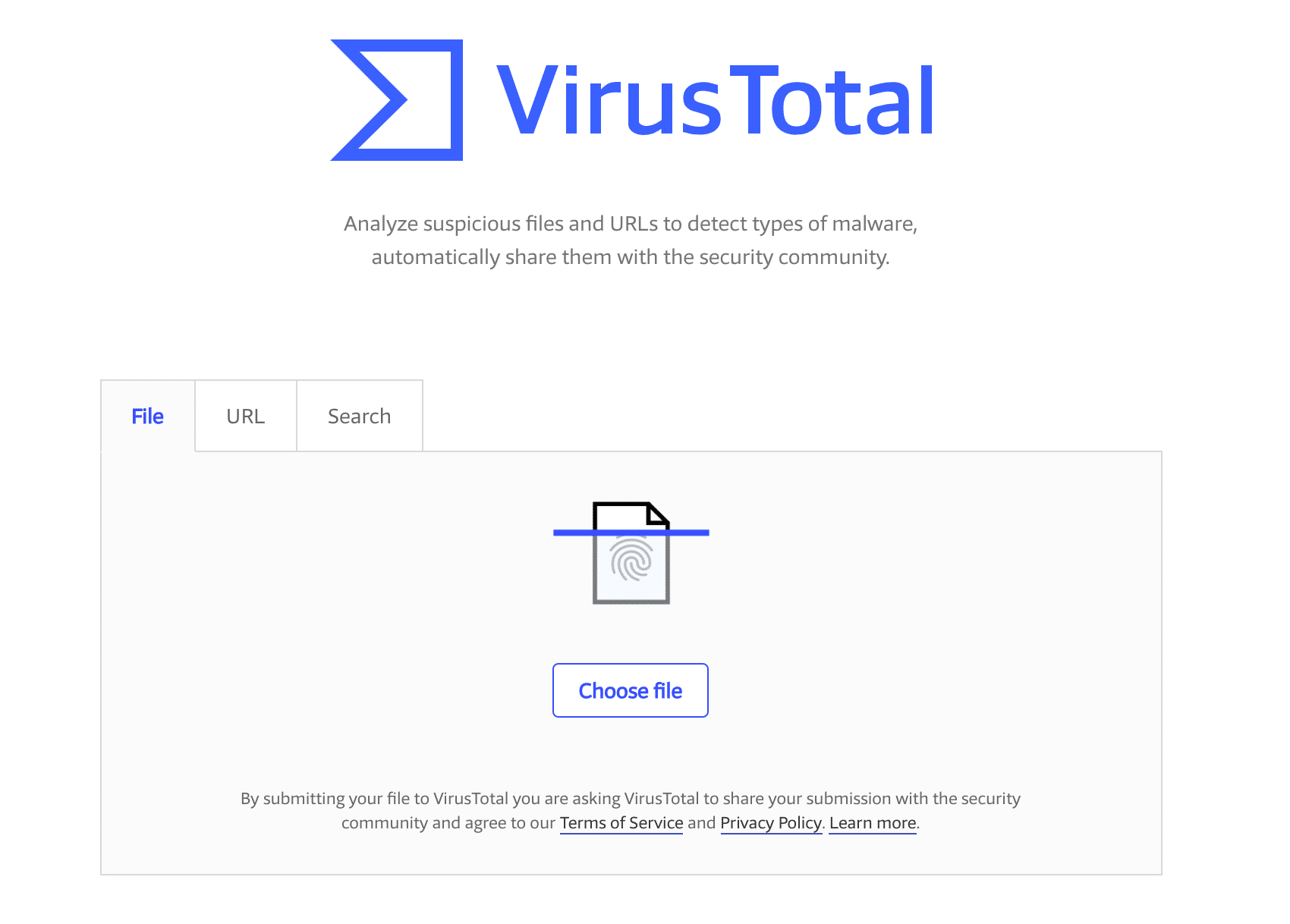
You can use an online tool like VirusTotal to scan a plugin or theme’s files to see if it detects any type of malware.
How to Update WordPress Core
There are a couple easy ways to update your WordPress installation. If you are a Host SEO customer we provided automatic backups with a one-click restore option. This way you can test new versions of WordPress and plugins without having to worry about it breaking anything. Or you could also first test in our staging environment.
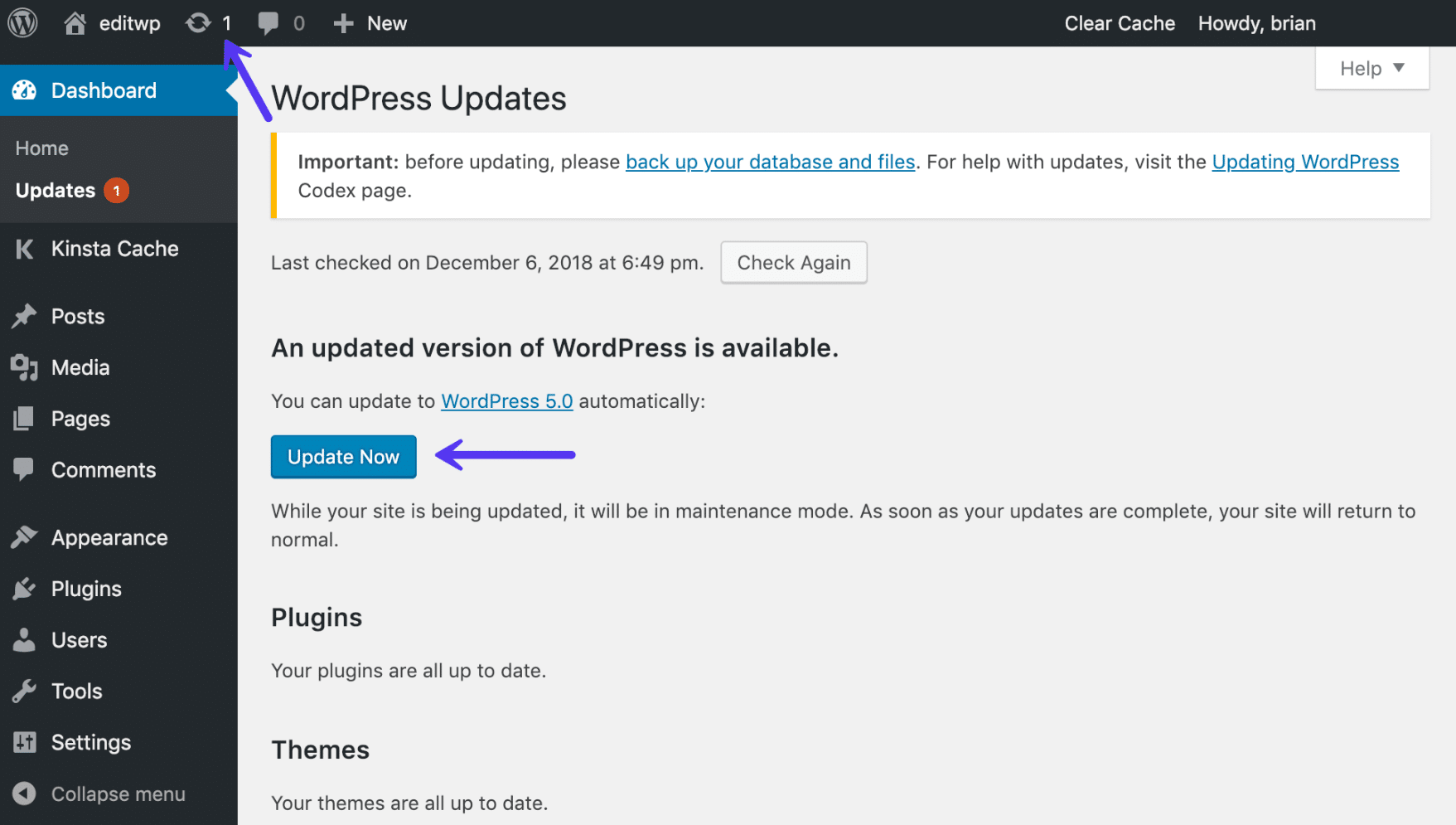
To update WordPress core you can click into “Updates” in your WordPress dashboard and click on the “Update Now” button.
You can also update WordPress manually by downloading the latest version and uploading it via SFTP.
Follow the steps below to update your existing installation:
- Delete the old
wp-includesandwp-admindirectories. - Upload the new
wp-includesandwp-admindirectories. - Upload the individual files from the new
wp-contentfolder to your existingwp-contentfolder, overwriting existing files. Do NOT delete your existingwp-contentfolder. Do NOT delete any files or folders in your existingwp-contentdirectory (except for the one being overwritten by new files). - Upload all new loose files from the root directory of the new version to your existing WordPress root directory.
How to Update WordPress Plugins
Updating your WordPress plugins is a very similar process to updating WordPress core. Click into “Updates” in your WordPress dashboard, select the plugins you want to update, and click on “Update Plugins.”
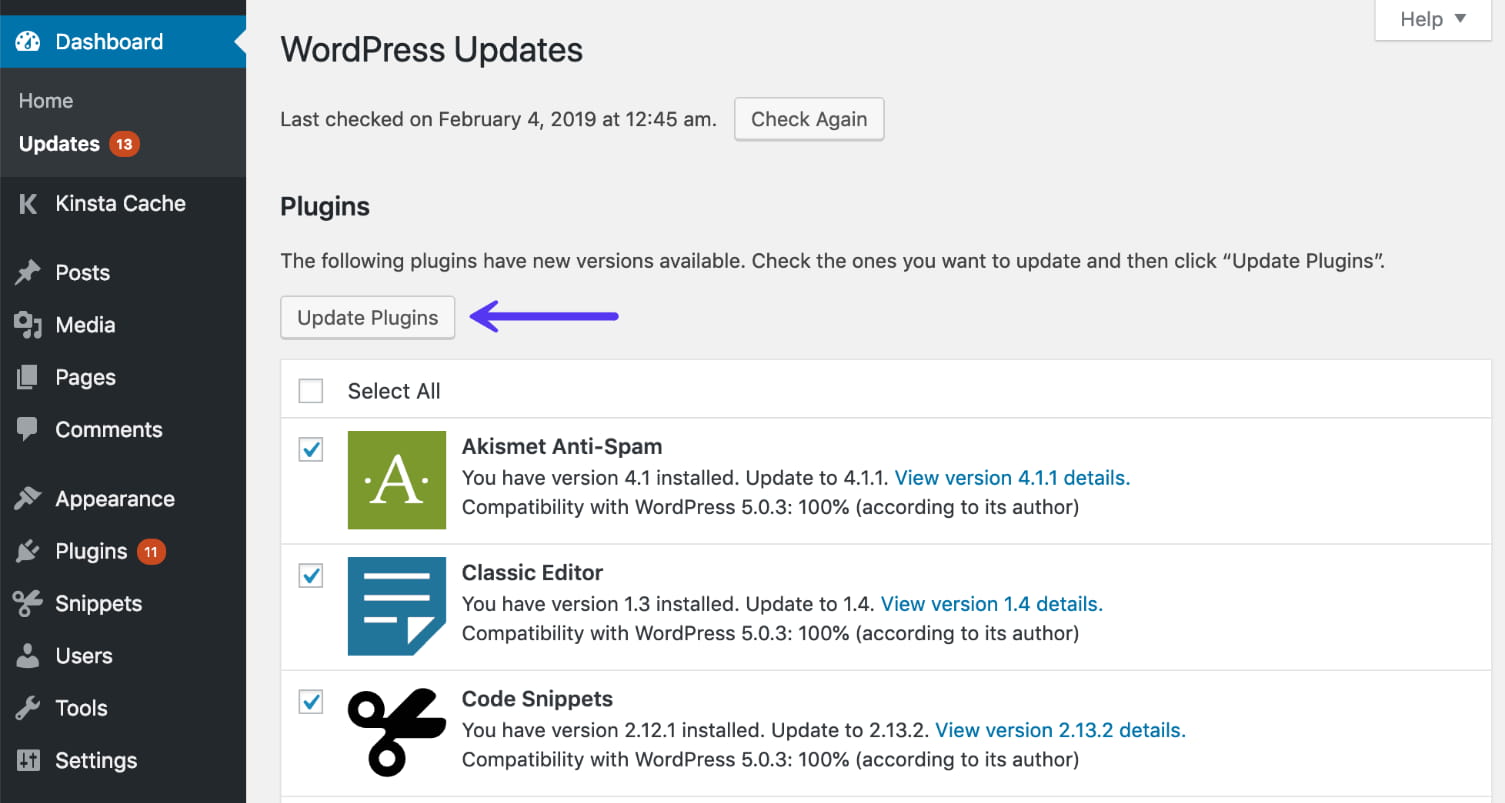
Likewise, you can also update a plugin manually. Simply grab the latest version from the plugin developer or WordPress repository and upload it via FTP, overwriting the existing plugin within the /wp-content/plugins directory.
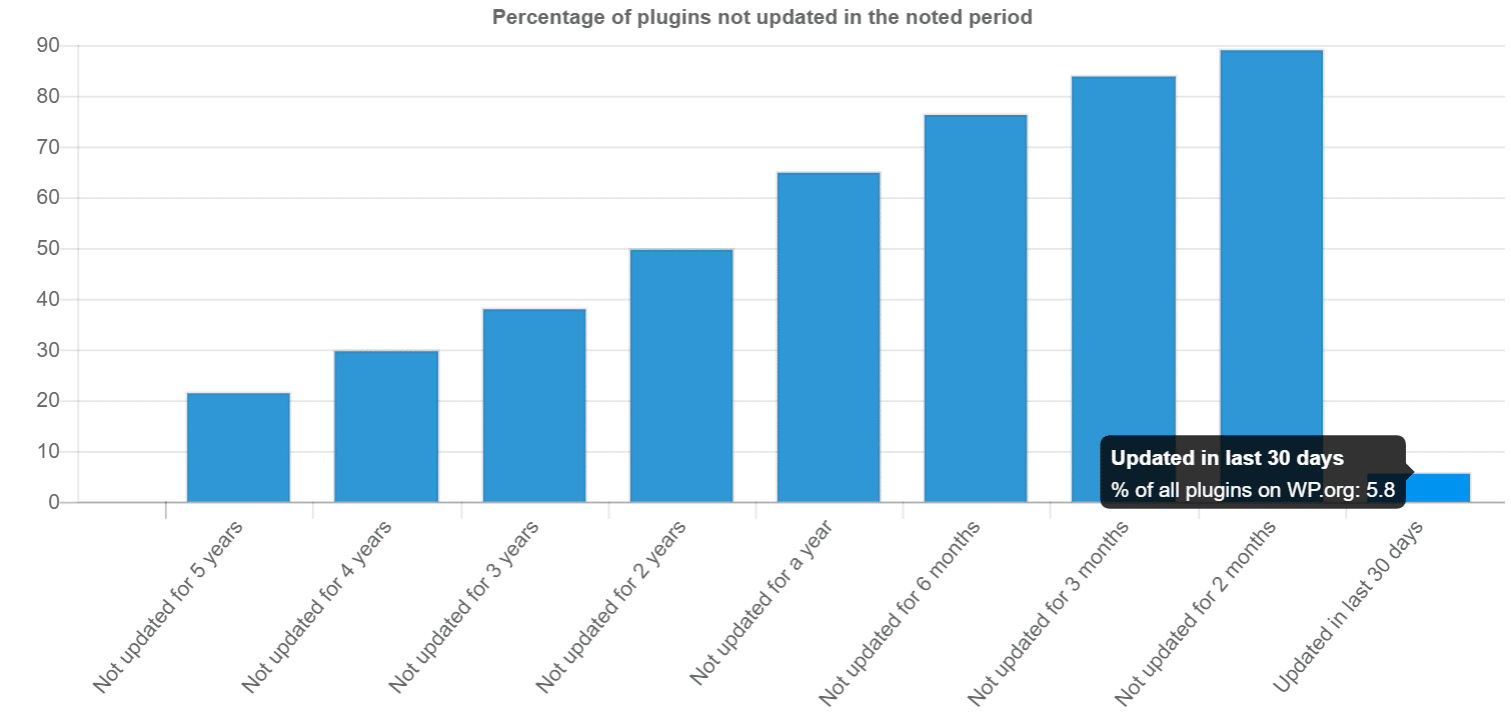
It’s also important to note that developers don’t always keep their plugins up to date. The team over at WP Loop did a great little analysis of just how many WordPress plugins in the repository aren’t up to date with the current WordPress core. According to their research nearly 50% of the plugins in the repository have not been updated in over 2 years.
This doesn’t mean the plugin won’t work with the current version of WordPress, but it’s recommended that you choose plugins that are actively updated. Out of date plugins are more likely to contain security vulnerabilities.
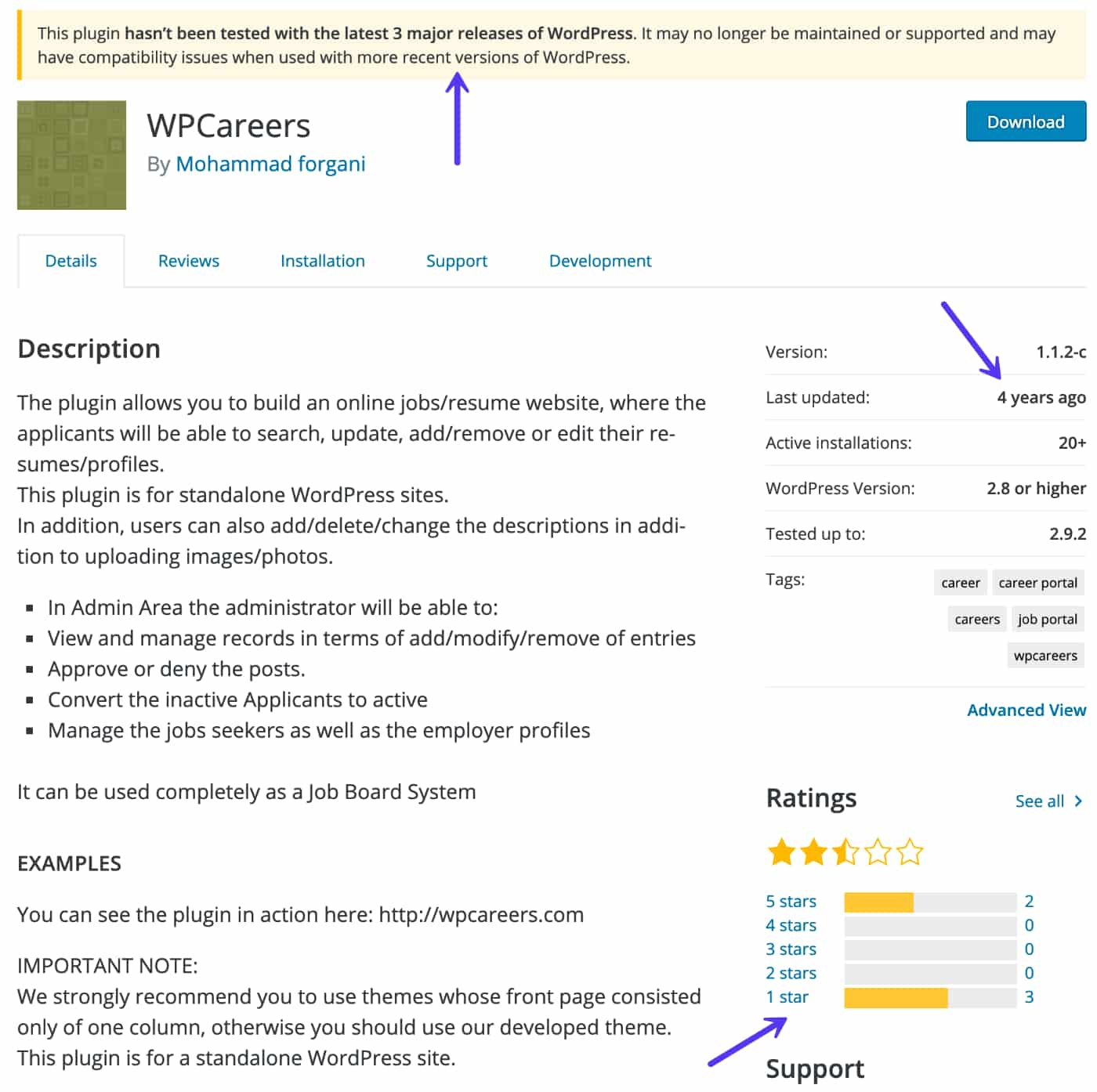
Use your best judgment when it comes to plugins. Look at the “Last Updated” date and how many ratings a plugin has. As seen in the example below, this one is out of date and has bad reviews so we would most likely recommend staying away from it. WordPress also has a warning at the top of most plugins that haven’t been updated in a while.
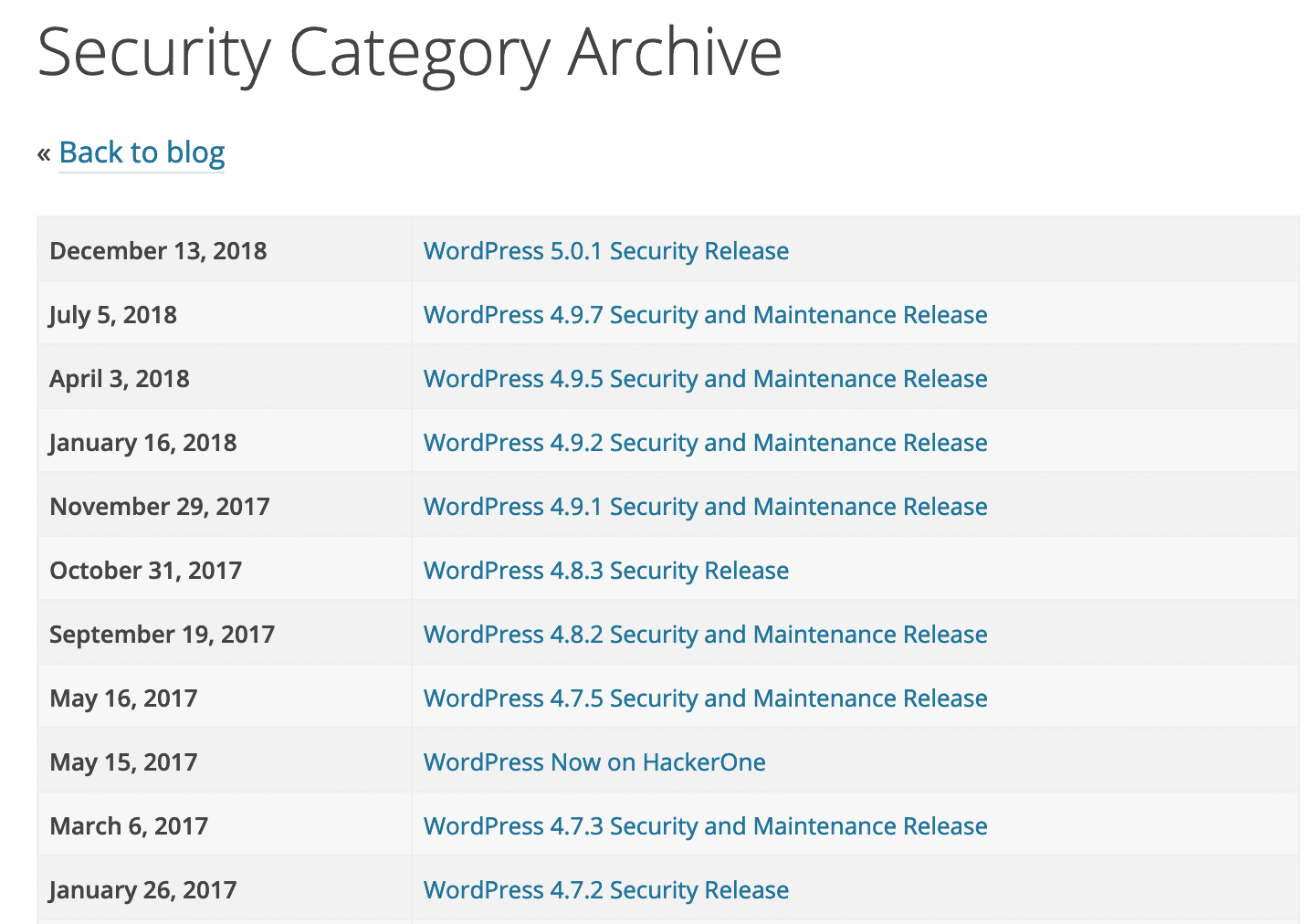
There are also a lot of resources out there to help you stay on top of the latest WordPress security updates and vulnerabilities. See some of them below:
- WP Security Bloggers: An awesome aggregated resource of 20+ security feeds.
- WPScan Vulnerability Database: Catalogs over 10,000 WordPress Core, Plugin and Theme vulnerabilities.
- ThreatPress: Daily updated database of WordPress plugins, themes, and WordPress core vulnerabilities.
- Official WordPress Security Archive
5. Lock Down Your WordPress Admin
Sometimes the popular strategy of WordPress security by obscurity is appropriately effective for an average online business and WordPress site. If you make it harder for hackers to find certain backdoors then you are less likely to be attacked. Locking down your WordPress admin area and login is a good way to beef up your security. Two great ways to do this is first by changing your default wp-admin login URL and also limiting login attempts.
How to Change Your WordPress Login URL
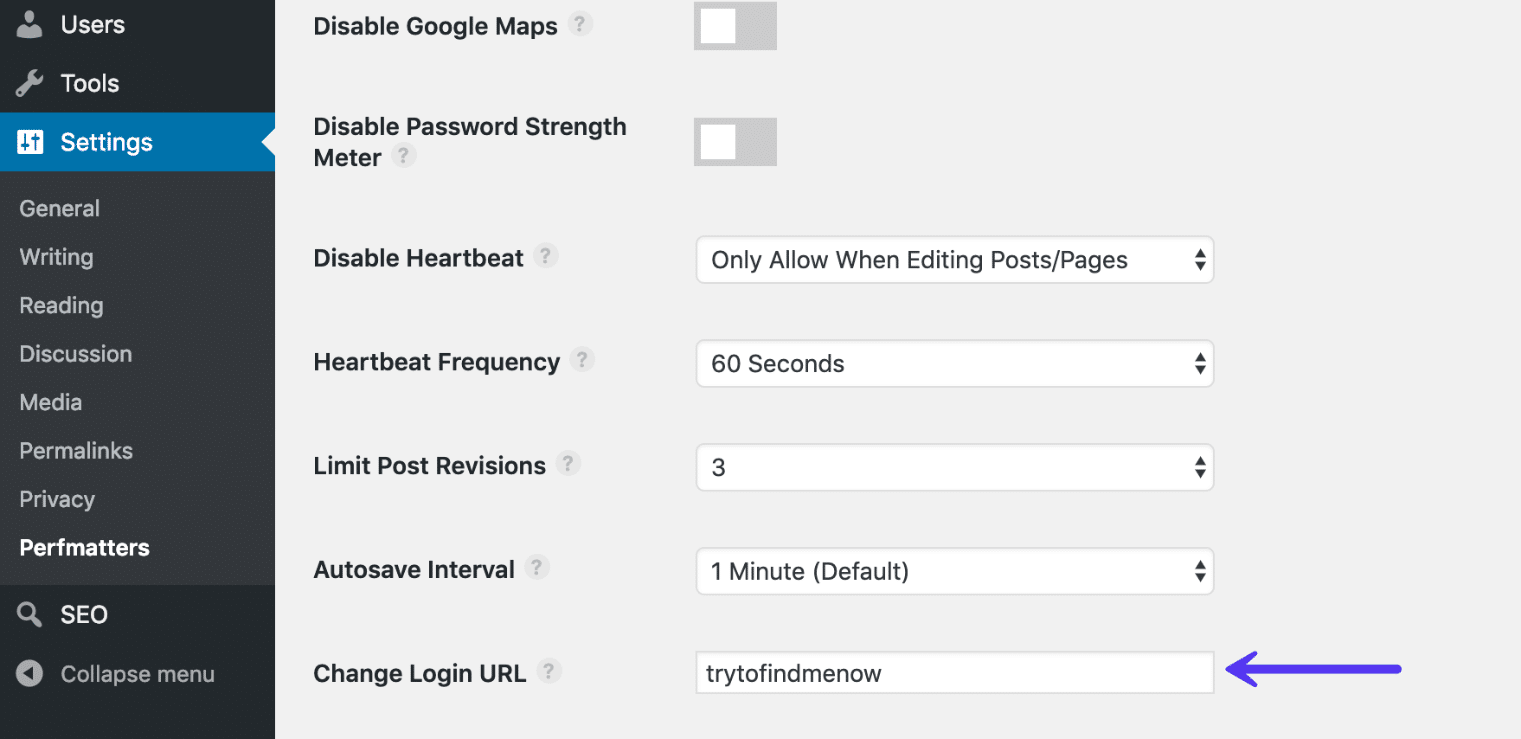
By default your WordPress site’s login URL is domain.com/wp-admin. One of the problems with this is that all of the bots, hackers, and scripts out there also know this. By changing the URL you can make yourself less of a target and better protect yourself against brute force attacks. This is not a fix all solution, it is simply one little trick that can definitely help protect you.
To change your WordPress login URL we recommend using the free WPS Hide login plugin or the premium Perfmatters plugin. Both of the plugins have a simple input field. Just remember to pick something unique that won’t already be on a list that a bot or script might attempt to scan.
How to Limit Login Attempts
While the above solution of changing your admin login URL can help decrease the majority of the bad login attempts, putting a limit in place can also be very effective. The free Cerber Limit Login Attempts plugin is a great way to easily setup lockout durations, login attempts, and IP whitelists and blacklists.
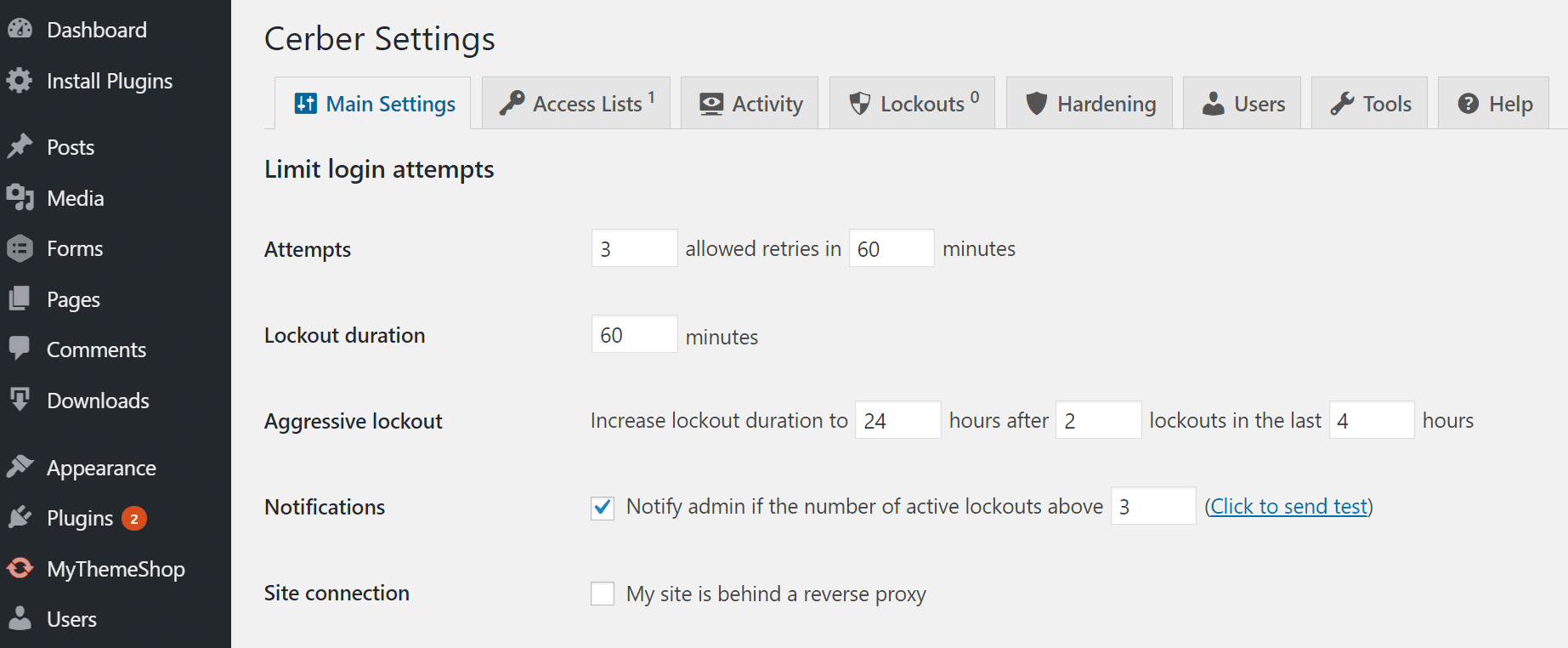
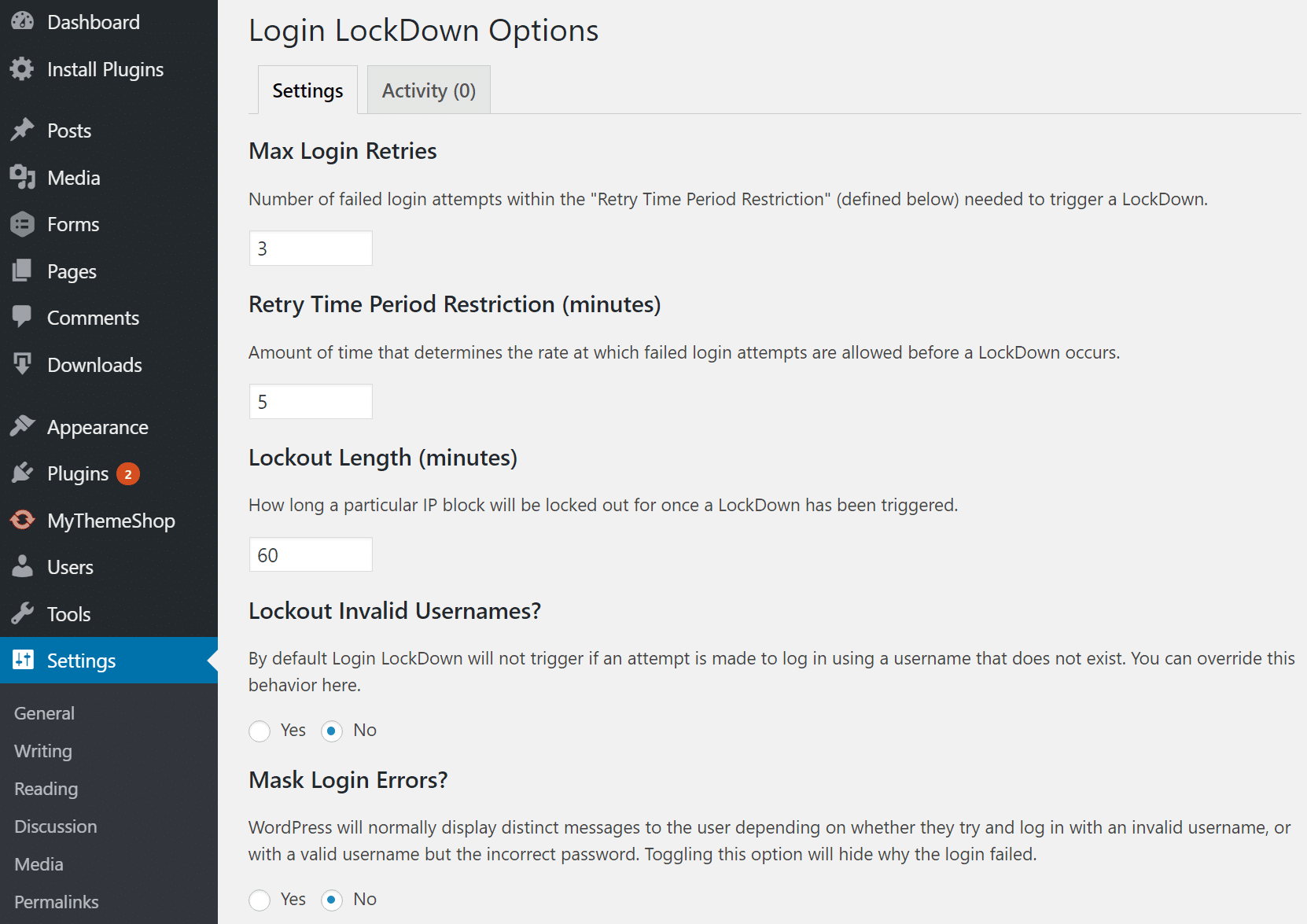
If you are looking for a more simple WordPress security solution, another great alternative is the free Login Lockdown plugin. Login LockDown records the IP address and timestamp of every failed login attempt. If more than a certain number of attempts are detected within a short period of time from the same IP range, then the login function is disabled for all requests from that range. And it is completely compatible with the WPS Hide login plugin we mentioned above.
How to Add Basic HTTP Authentication (htpasswd protection)
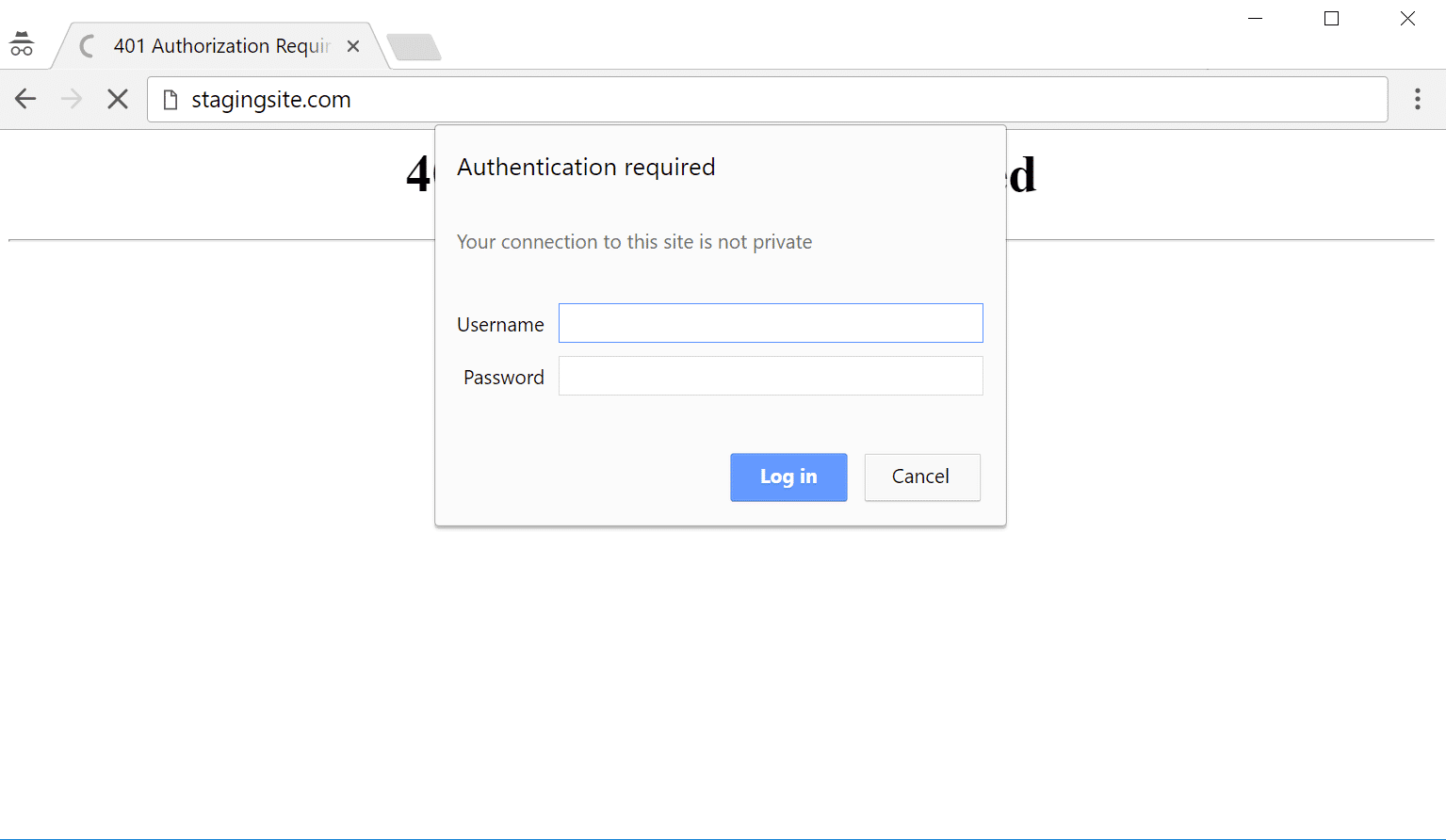
Another way to lock down your admin is to add HTTP authentication. This requires a username and password before being able to even access the WordPress login page. Note: This generally shouldn’t be used on eCommerce sites or membership sites. But it can be a very effective way to prevent bots from hitting your site.
Apache
If you are using a cPanel host, you can enable password protected directories from their control panel. To set it up manually, you will first need to create a .htpasswdfile. You can use this handy generator tool. Then upload the file to a directory under your wp-admin folder, such as:
home/user/.htpasswds/public_html/wp-admin/htpasswd/Then create a .htaccess file with the following code and upload it to your /wp-admin/ directory. Make sure you update the directory path and username.
AuthName "Admins Only"
AuthUserFile /home/yourdirectory/.htpasswds/public_html/wp-admin/htpasswd
AuthType basic
require user yourusername
The one caveat to doing it this way is that it will break AJAX (admin-ajax) on the front-end of your site. This is required by some third-party plugins. Therefore you will also need to add the following code to the above .htaccess file.
<Files admin-ajax.php>
Order allow,deny
Allow from all
Satisfy any
</Files>
Nginx
If you are running Nginx, you can also restrict access with HTTP basic authentication. Check out this tutorial. If you are a Host SEO client, reach out to our support team and we can easily add this for you.
Lockdown a URL path
If you’re using a web application firewall (WAF) such as Cloudflare or Sucuri, they also have ways to lockdown a URL path. Essentially you can set up a rule so that only your IP address is able to access your WordPress admin login URL. Again, this generally shouldn’t be used on eCommerce sites or membership sites as they also rely on accessing your site’s back-end.
- Cloudflare has a lockdown URL feature in their Pro and higher accounts. You can set up a rule for any URL or path.
- Sucuri has a blacklist URL path feature. You could then whitelist your own IP.
6. Take Advantage of Two-Factor Authentication
And of course, we can’t forget two-factor authentication! No matter how secure your password is there is always a risk of someone discovering it. Two-factor authentication involves a two-step process in which you need not only your password to login but a second method. It is generally a text (SMS), phone call, or time-based one-time password (TOTP). In most cases, this is 100% effective in preventing brute force attacks to your WordPress site. Why? Because it is almost impossible that the attacker will have both your password and your cellphone.
There are really two parts when it comes to two-factor authentication. The first is your account and or dashboard that you have with your web hosting provider. If someone gets access to this they could change your passwords, delete your websites, change DNS records, and all sorts of horrible things. We here at Host SEO partnered up with Authy and have two-factor authentication available for your Host SEO dashboard.
The second part of two-factor authentication pertains to your actual WordPress installation. For this there are a couple plugins we recommend:
- Duo Two-Factor Authentication
- Google Authenticator
- Two Factor Authentication
Many of these have their own Authenticator Apps you can install on your phone:
- Android Duo Mobile App
- iPhone Duo Mobile App
- Android Google Authenticator App
- iPhone Google Authenticator App
After installing and configuring one of the above plugins, you will typically have an additional field on your WordPress login page to enter your security code. Or, with the Duo plugin, you first log in with your credentials and are then required to choose an authentication method, such as Duo Push, call, or passcode.
This method can easily be combined with changing your default login URL, which we went over earlier. So not only is your WordPress login URL something only you know, but it now requires extra authentication to get in. ?
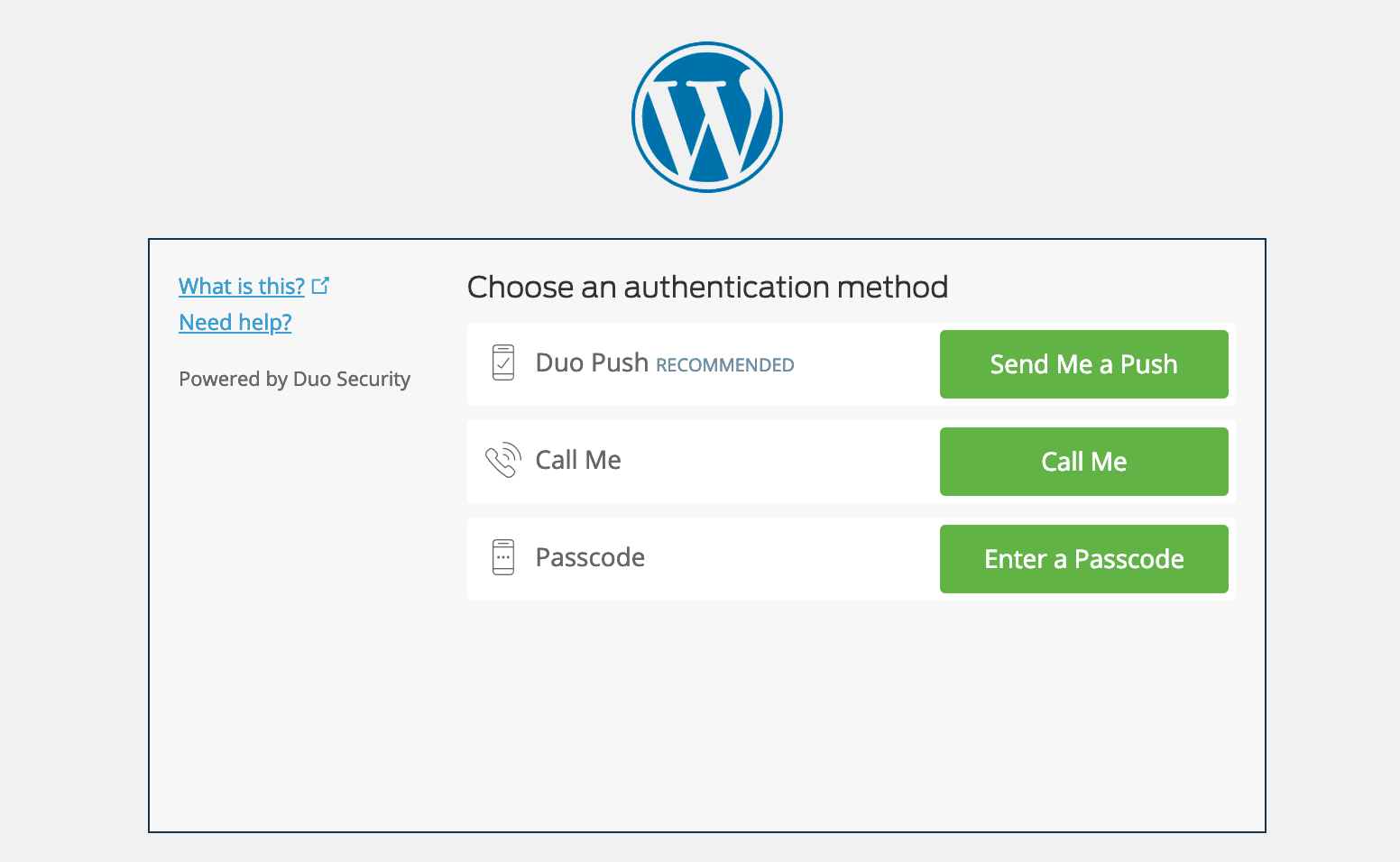
So make sure to take advantage of two-factor authentication, it can be an easy way to beef up your WordPress security.
7. Use HTTPS for Encrypted Connections – SSL Certificate
One of the most overlooked ways to harden your WordPress security is to install an SSL certificate and run your site over HTTPS. HTTPS (Hyper Text Transfer Protocol Secure) is a mechanism that allows your browser or web application to securely connect with a website. A big misconception is that if you aren’t accepting credit cards that you don’t need SSL.
1. Security
Of course, the biggest reason for HTTPS is the added security, and yes this does pertain strongly to eCommerce sites. However, how important is your login information? For those of you running multi-author WordPress websites, if you are running over HTTP, every time a person logs in, that information is being passed to the server in plain text. HTTPS is absolutely vital in maintaining a secure connection between a website and a browser. This way you can better prevent hackers and or a middle man from gaining access to your website.
So whether you have a blog, news site, agency, etc., they can all can benefit from HTTPS as this ensures nothing ever passes in plain text.
2. SEO
Google has officially said that HTTPS is a ranking factor. While it is only a small ranking factor, most of you would probably take any advantage you can get in SERPs to beat your competitors.
3. Trust and Credibility
According to a survey from GlobalSign, 28.9% of visitors look for the green address bar in their browser. And 77% of them are worried about their data being intercepted or misused online. By seeing that green padlock, customers will instantly have more peace of mind knowing that their data is more secure.
4. Referral Data
A lot of people don’t realize is that HTTPS to HTTP referral data is blocked in Google Analytics. So what happens to the data? Well, most of it is just lumped together with the “direct traffic” section. If someone is going from HTTP to HTTPS the referrer is still passed.
5. Chrome Warnings
As of July 24th, 2018, versions of Chrome 68 and higher started marking all non-HTTPS sites as “Not Secure.” Regardless of whether they collect data or not. This is why HTTPS is more important than ever!
This is especially important if your website gets a majority of its traffic from Chrome. You can look in Google Analytics under the Audience section in Browser & OS so see the percentage of traffic your WordPress site gets from Google Chrome. Google is making it a lot more clear to visitors that your WordPress website might not be running on a secured connection.

6. Performance
Because of a protocol called HTTP/2, a lot of times, those running properly optimized sites over HTTPS can even see speed improvements. HTTP/2 requires HTTPS because of browser support. The improvement in performance is due to a variety of reasons such as HTTP/2 being able to support better multiplexing, parallelism, HPACK compression with Huffman encoding, the ALPN extension, and server push. And with TLS 1.3, HTTPS connections are even faster.
Re-thinking HTTPS now? Check out our in-depth WordPress HTTPS migration guideto get you up and going.
To enforce a secure, encrypted connection between you and the server when logging into and administering your site, add the following line to your wp-config.php file:
define('FORCE_SSL_ADMIN', true);8. Harden Your wp-config.php file
Your wp-config.php file is like the heart and soul of your WordPress installation. It is by far the most important file on your site when it comes to WordPress security. It contains your database login information and security keys which handle the encryption of information in cookies. Below are a couple things you can do to better protect this important file.
1. Move wp-config.php
By default, your wp-config.php file resides in the root directory of your WordPress installation (your /public HTML folder). But you can move this to a non-www accessible directory. Aaron Adams wrote up a great explanation of why this is beneficial.
To move your wp-config.php file simply copy everything out of it into a different file. Then in your wp-config.php file you can place the following snippet to simply include your other file. Note: the directory path might be different based on your web host and setup. Typically though it is simply one directory above.
<?php
include('/home/yourname/wp-config.php');
Note: this won’t work for Host SEO clients and will break functionality on our platform. This is because our open_basedir restrictions don’t allow execution of PHP above the ~/public directory for security reasons. The good news is we handle this for you! We do effectively the same thing by blocking access to wp-login.php within the ~/public directory. Our default Nginx config includes a rule that will return a 403 for any attempted access of wp-config.php.
2. Update WordPress Security Keys
WordPress security keys are a set of random variables that improve encryption of information stored in the user’s cookies. Since WordPress 2.7 there have been 4 different keys: AUTH_KEY, SECURE_AUTH_KEY, LOGGED_IN_KEY, and NONCE_KEY.
When you install WordPress these are generated randomly for you. However, if you have gone through multiple migrations or purchased a site from someone else, it can be good to create fresh WordPress keys.
WordPress actually has a free tool which you can use to generate random keys. You can update your current keys which are stored in your wp-config.php file.
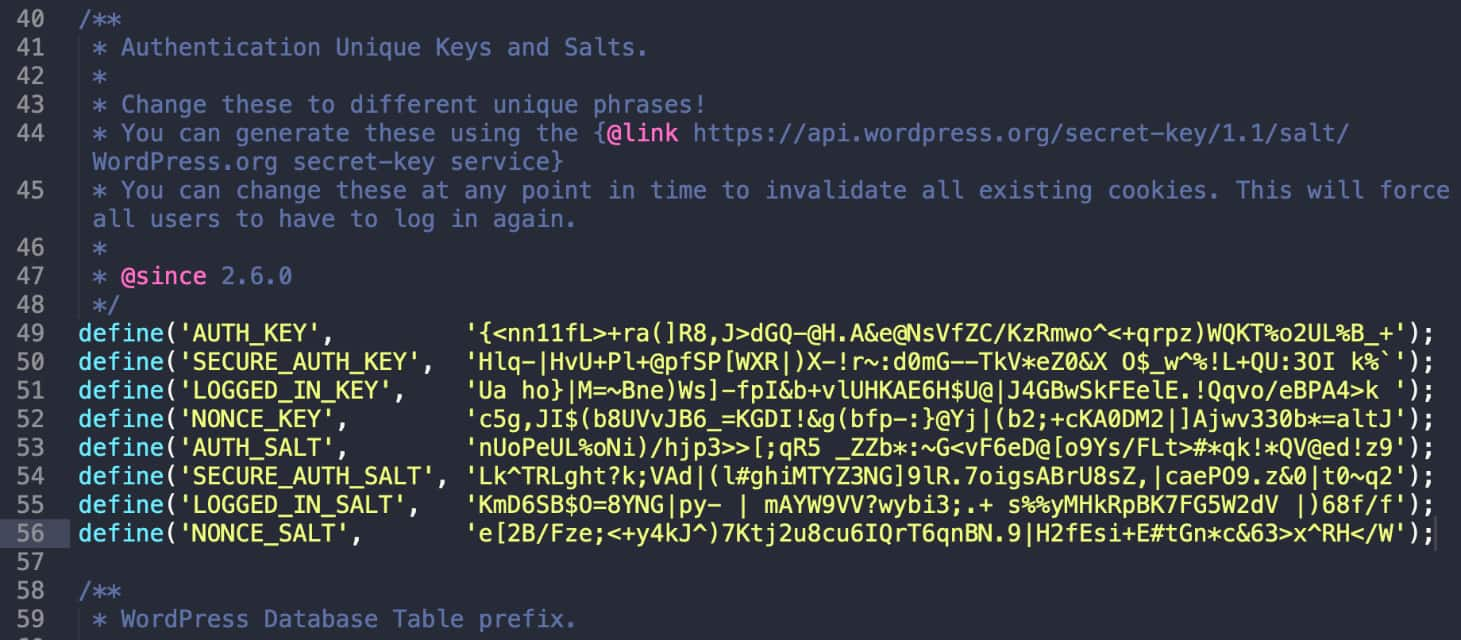
3. Change Permissions
Typically files in the root directory of a WordPress site will be set to 644, which means that files are readable and writeable by the owner of the file and readable by users in the group owner of that file and readable by everyone else. According to the WordPress documentation, the permissions on the wp-config.php file should be set to 440 or 400 to prevent other users on the server from reading it. You can easily change this with your FTP client.

On some hosting platforms, the permissions might need to be different because the user running the web server doesn’t have permission to write files. If you aren’t sure about this, check with your hosting provider.
9. Disable XML-RPC
In the past years XML-RPC has become an increasingly large target for brute force attacks. As Sucuri mentioned, one of the hidden features of XML-RPC is that you can use the system.multicall method to execute multiple methods inside a single request. That’s very useful as it allow application to pass multiple commands within one HTTP request. But what also happens is that it is used for malicious intent.
There are a few WordPress plugins like Jetpack that rely on XML-RPC, but a majority of people out there won’t need this and it can be beneficial to simply disable access to it. Not sure if XML-RPC is currently running on your website? Danilo Ercoli, from the Automattic team, wrote a little tool called the XML-RPC Validator. You can run your WordPress site through that to see if it has XML-RPC enabled. If it isn’t, you will see a failure message such as shown in the image below on the Host SEO blog.
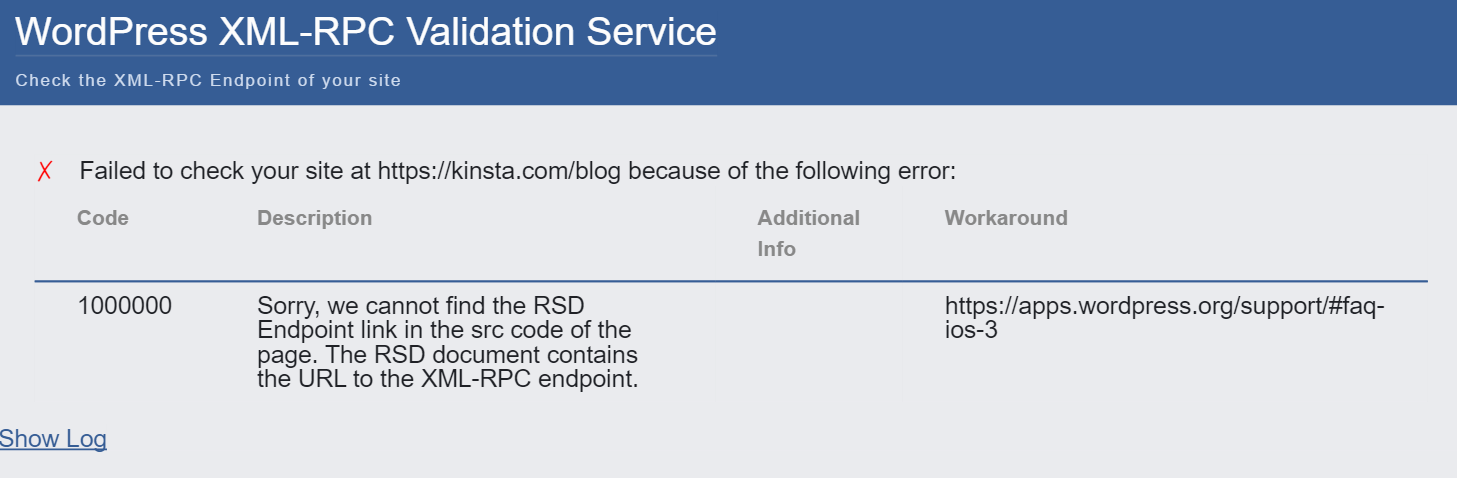
To disable this completely you can install the free Disable XML-RPC plugin. Or you can disable it with the premium perfmatters plugin, which also contains web performance improvements.
If you are a customer here at Host SEO this is not needed because when an attack through XML-RPC is detected a little snippet of code is added into the NGINX config file to stop them in their tracks – producing a 403 error.
location ~* ^/xmlrpc.php$ {
return 403;
}
10. Hide Your WordPress Version
Hiding your WordPress version touches again on the subject of WordPress security by obscurity. The less other people know about your WordPress site configuration the better. If they see you are running an out of date WordPress installation, this could be a welcome sign to intruders. By default, the WordPress version shows up in the header of your site’s source code. Again, we recommend simply making sure your WordPress installation is always up to date so you don’t have to worry about this.
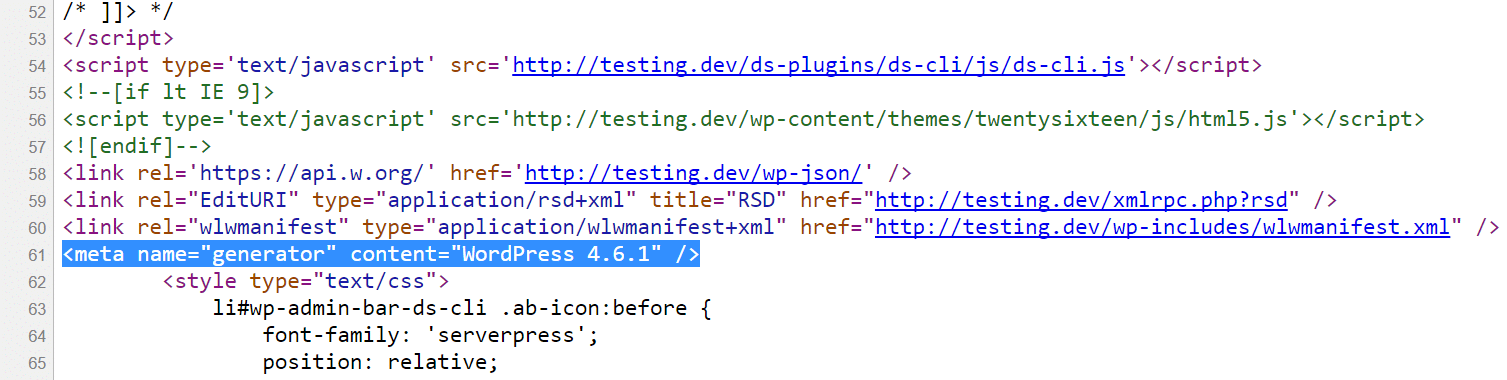
You can use the following code to remove this. Simply add it to your WordPress theme’s functions.php file.
function wp_version_remove_version() {
return '';
}
add_filter('the_generator', 'wp_version_remove_version');
You could also use a premium plugin like perfmatters (developed by a team member at Host SEO), which allows you to hide the WordPress version with one-click, along with other optimizations for your WordPress site.
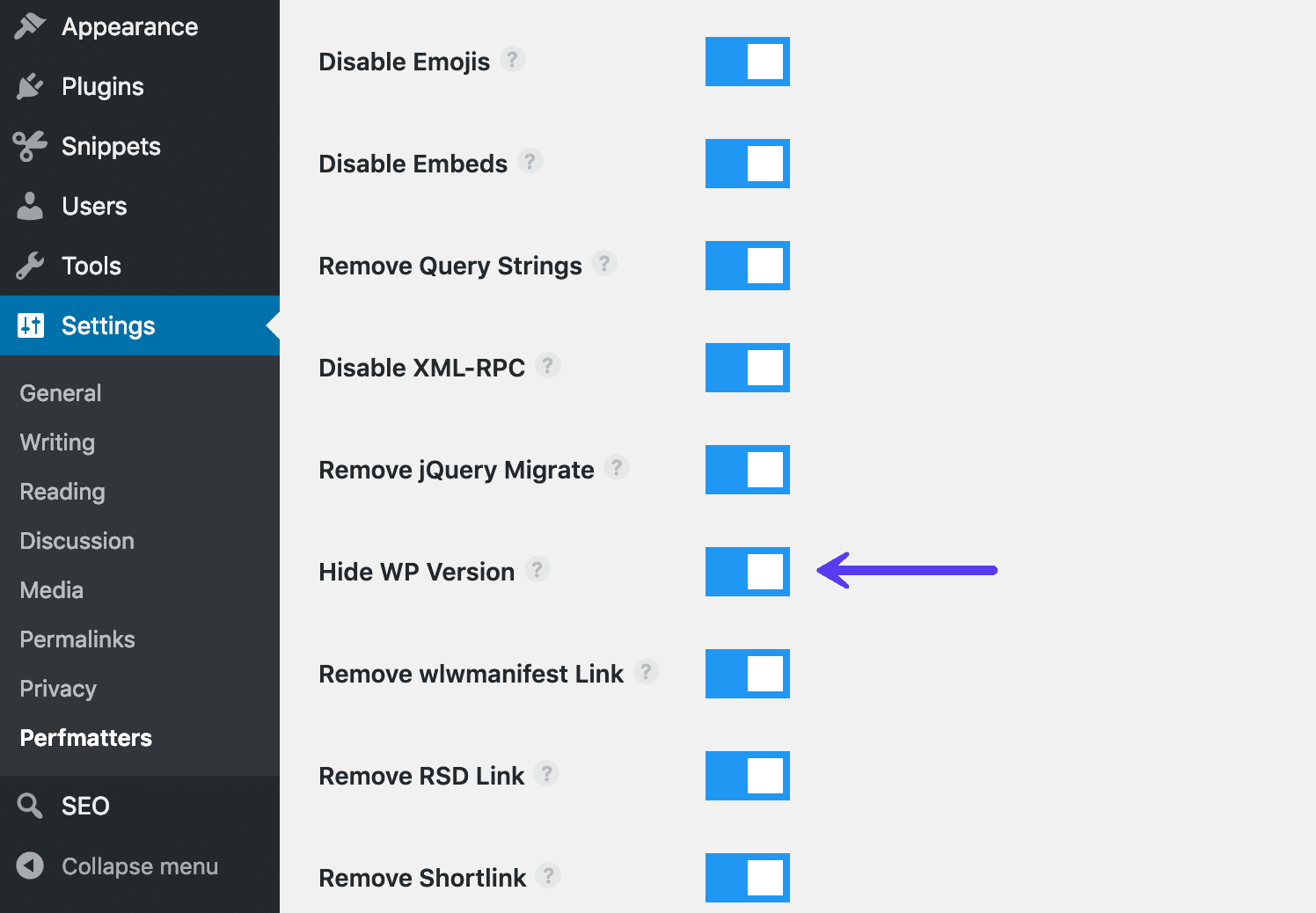
Another place where the WordPress version shows up is in the default readme.htmlfile (as shown below) that is included in every WordPress version. It is located in the root of your installation, domain.com/readme.html. You can safely delete this file via FTP.
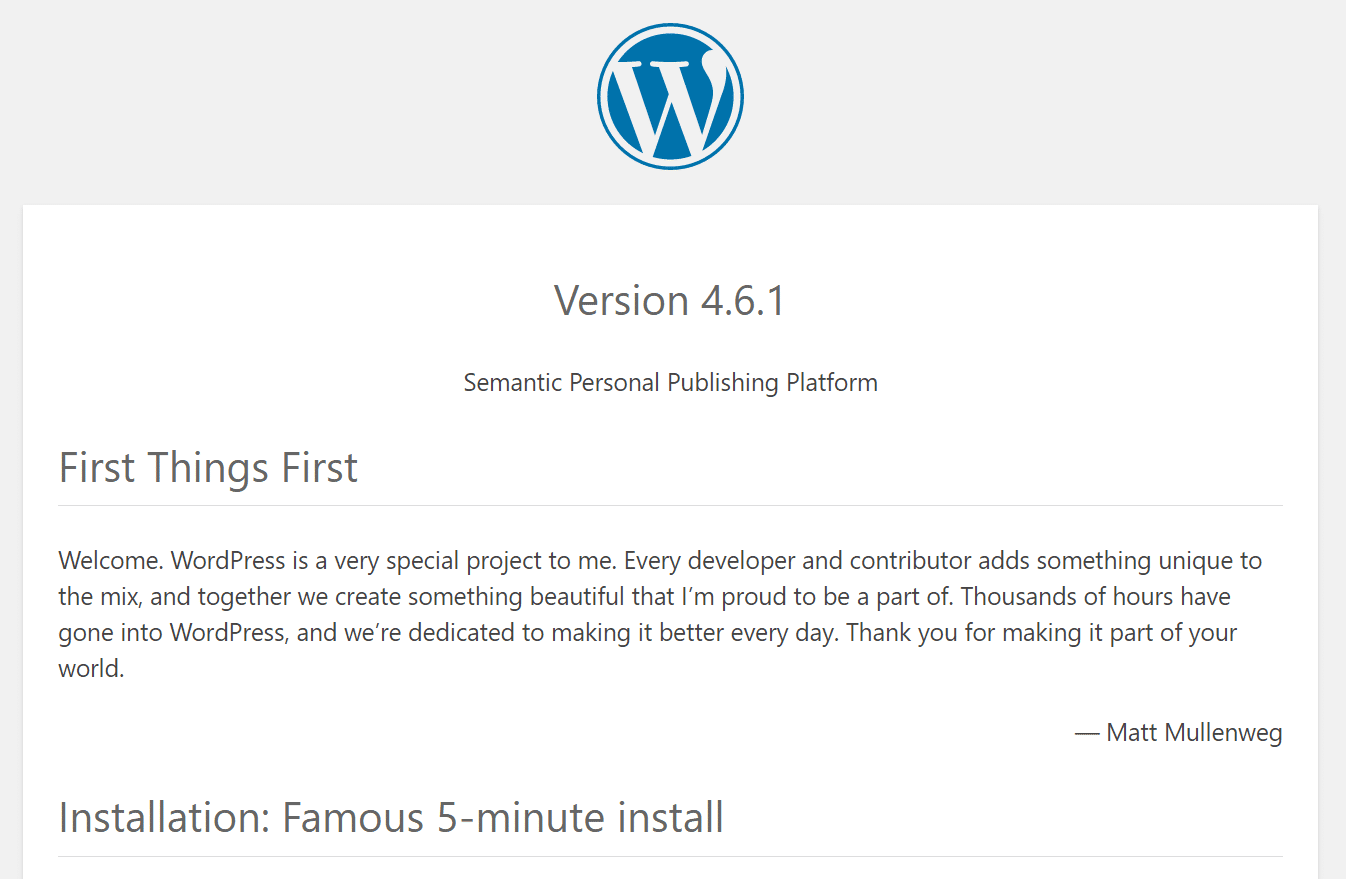
If you’re running WordPress 5.0 or higher this is no longer applicable as the version number is no longer included in the file.
11. Add Latest HTTP Security Headers
Another step you can take to harden your WordPress security is to take advantage of HTTP security headers. These are usually configured at the web server level and tell the browser how to behave when handling your site’s content. There are a lot of different HTTP security headers, but below are typically the most important ones.
- Content-Security Policy
- X-XSS-Protection
- Strict-Transport-Security
- X-Frame-Options
- Public-Key-Pins
- X-Content-Type
KeyCDN has a great in-depth post if you want to read more about HTTP security headers.
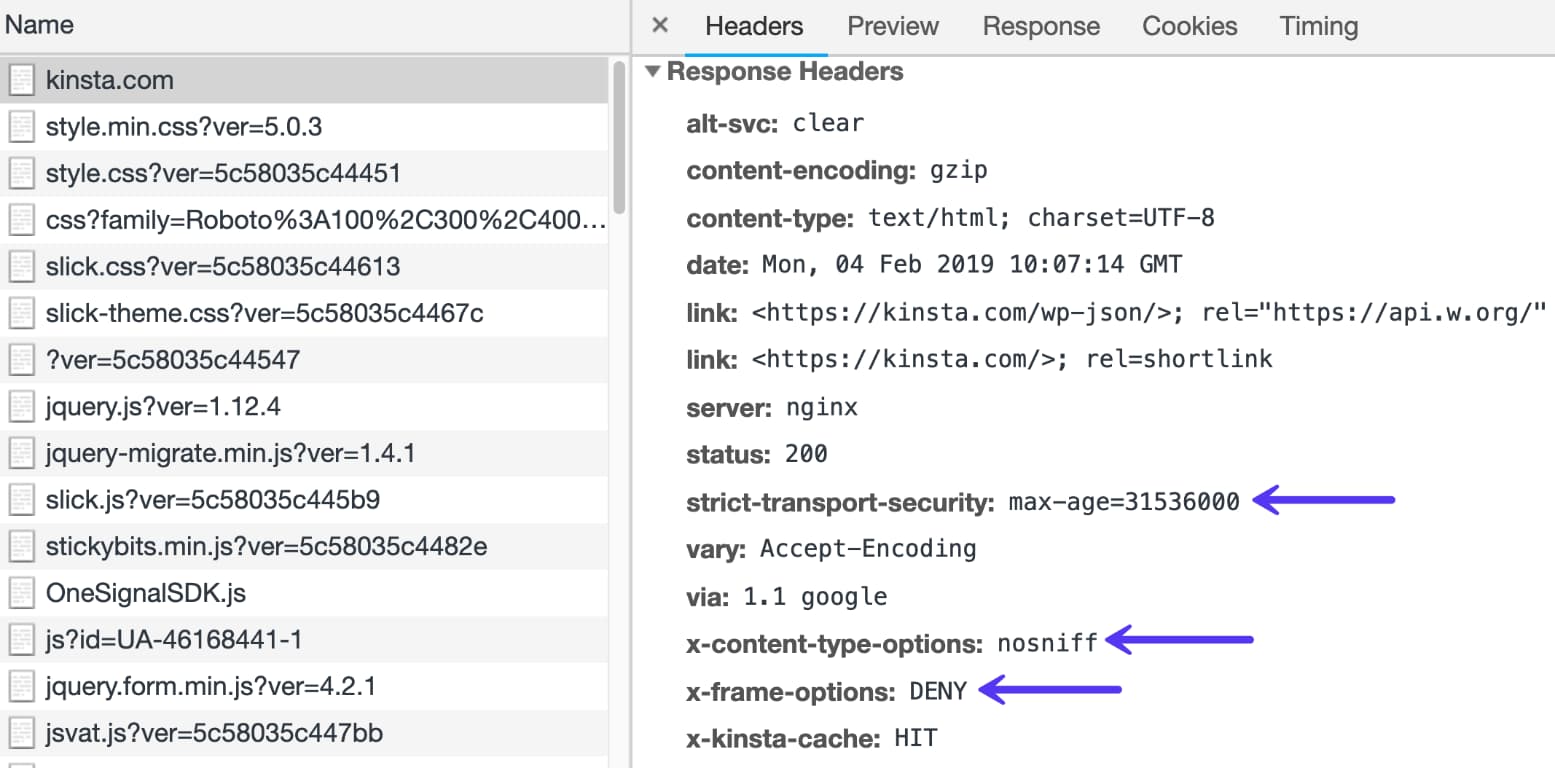
You can check which headers are currently running on your WordPress site by launching Chrome devtools and looking at the header on your site’s initial response. Below is an example on Host SEO. You can see we are utilizing the strict-transport-security, x-content-type, and x-frame-options headers.
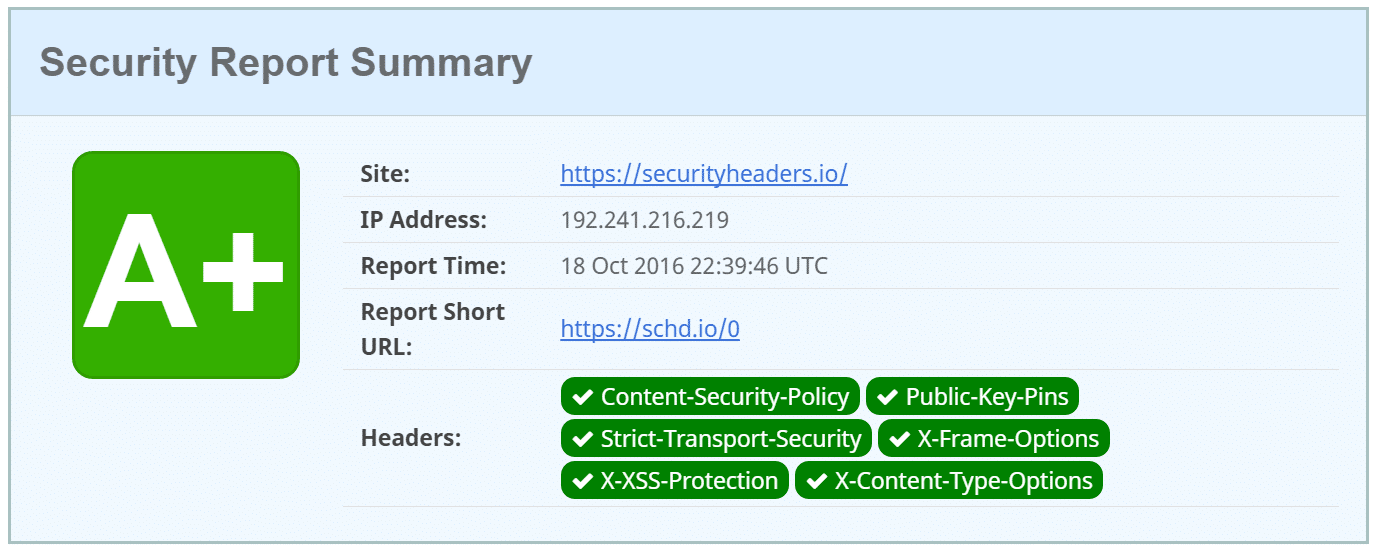
You can also scan your WordPress website with the free securityheaders.io tool by Scott Helme. This will show you which HTTP security headers you currently have on your site. If you aren’t sure how to implement them you can always ask your host if they can help.
Note: It is also important to remember that when you implement HTTP security headers how it might affect your WordPress subdomains. For example, if you add the Content Security Policy header and restrict access by domains, that you need to add your own subdomains as well.
12. Use WordPress Security Plugins
And of course, we have to give some WordPress security plugins some mentions. There are a lot of great developers and companies out there which provide great solutions to help better protect your WordPress site. Here are a couple of them.
Host SEO has hardware firewalls, active and passive security, by-the-minute uptime checks and scores of other advanced features to prevent attackers from gaining access to your data. If, despite our best efforts, your site is compromised we’ll fix it for free.
Here are some typical features and uses of the plugins above:
- Generate and force strong passwords when creating user profiles
- Force passwords to expire and be reset on a regular basis
- User action logging
- Easy updates of WordPress security keys
- Malware Scanning
- Two-factor authentication
- reCAPTCHAs
- WordPress security firewalls
- IP whitelisting
- IP blacklisting
- File changelogs
- Monitor DNS changes
- Block malicious networks
- View WHOIS information on visitors
A very important feature that many security plugins include a checksum utility. What this means is that they inspect your WordPress installation and look for modifications on the core files as provided by WordPress.org (via the API). Any changes or modifications to these files could indicate a hack. You can also use WP-CLI to run your own checksum.
Another great plugin the deserves an honorable mention is the WP Security Audit Log plugin. This is awesome for those of you working on WP multisite or simply multi-author sites. It helps ensure user productivity and lets administrators see everything that is being changed; such as logins, password changes, theme changes, widget changes, new post creations, WordPress updates, etc.
It’s a complete WordPress activity log solution. As of writing this the WP Security Audit Log plugin has over 80,000+ active installs with a 4.7 out of 5-star rating.
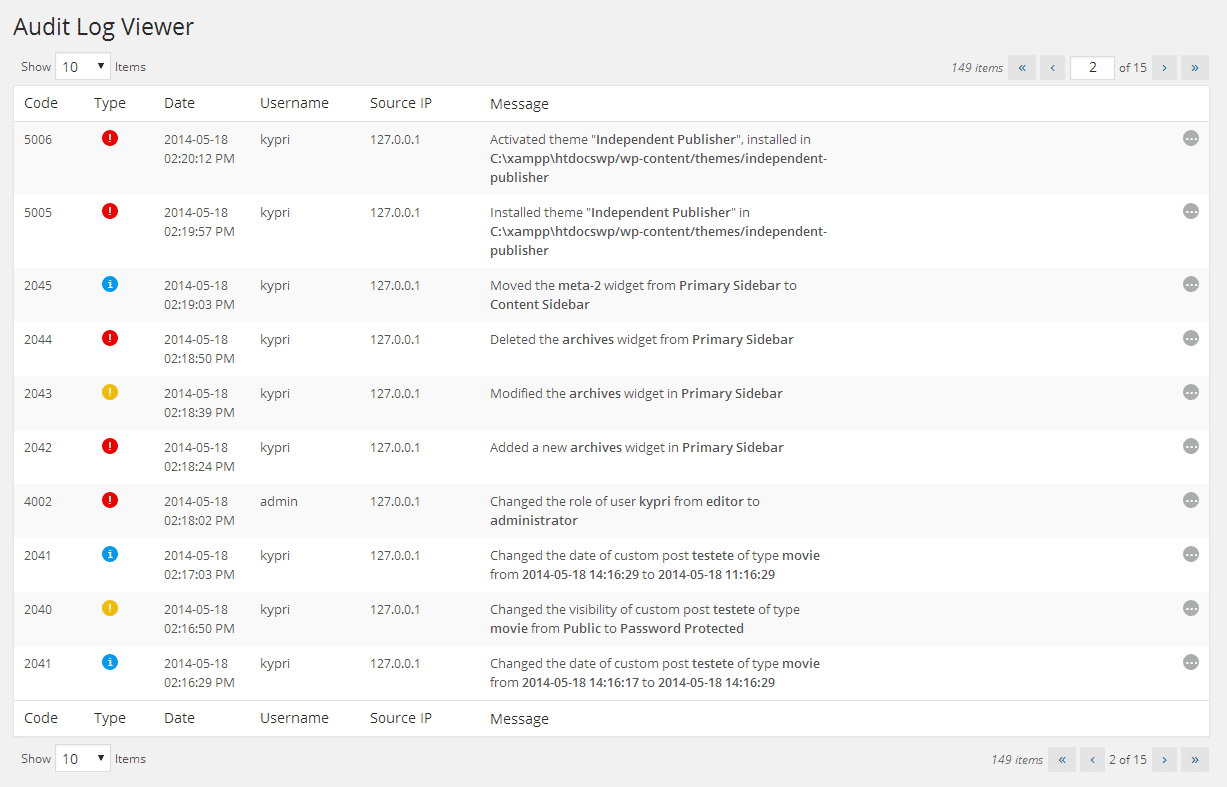
It also has additional premium add-ons such as email notifications, user sessions management, search, and reports. Check out these additional WordPress security plugins that can help lock out the bad guys.
13. Harden Database Security
There are a couple ways to better the security on your WordPress database. The first is to use a clever database name. If your site is named volleyball tricks, by default your WordPress database is most likely named wp_volleyballtricks. By changing your database name to some more obscure it helps protect your site by making it more difficult for hackers to identify and access your database details. The folks over at WPMUDEV wrote up a great little tutorial on how to change your database name on existing installs.
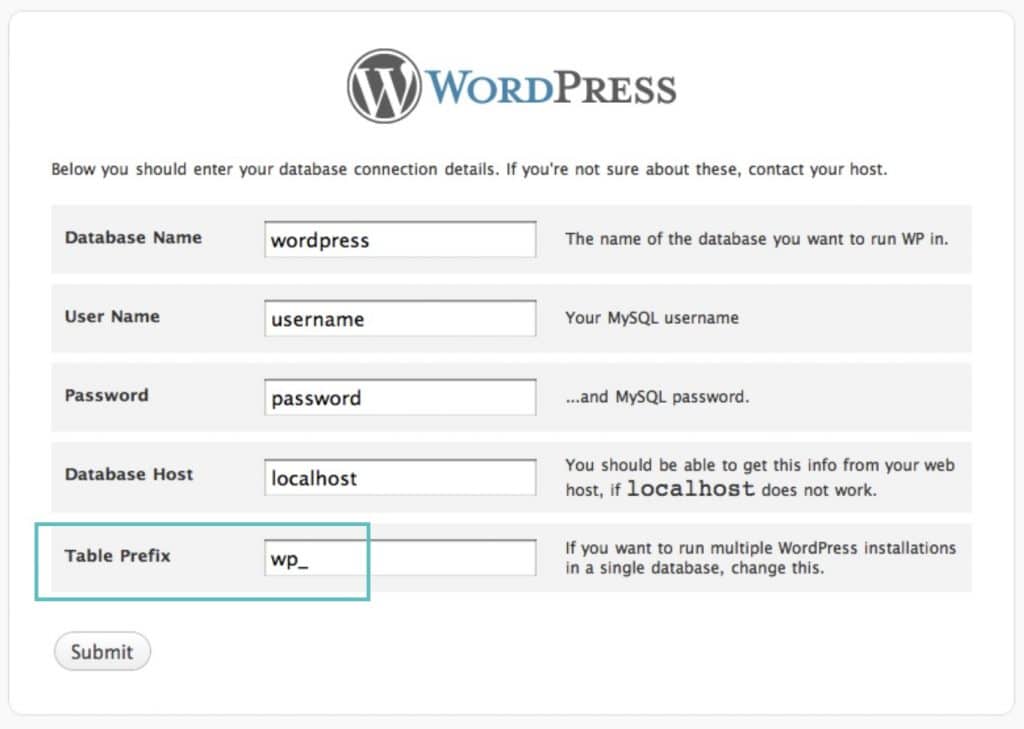
A second recommendation is to use a different database table prefix. By default WordPress uses wp_. Changing this to something like 39xw_ can be much more secure. When you install WordPress it asks for a table prefix (as seen below). There are also ways to change the WordPress table prefix on existing installations. If you’re a Host SEO client, this isn’t needed. We’ve got site and databased locked down!
4. Always Use Secure Connections
We can’t stress enough how important it is to use secure connections! Ensure that your WordPress host it taking precautions such as offering SFTP or SSH. SFTP or Secure File Transfer Protocol (also known as SSH file transfer protocol), is a network protocol used for file transfers. It is a more secure method vs standard FTP.
We only support SFTP connections at Host SEO to ensure your data remains safe and encrypted. Most WordPress hosts also typically use port 22 for SFTP. We take this a step further here at Host SEO and every site has a randomized port which can be found in your Host SEO dashboard.
It’s also important to ensure that your home router is setup correctly. If someone hacks your home network they could gain access to all sorts of information, including possibly where your important information about your WordPress site(s) is stored. Here are some simple tips:
- Don’t enable remote management (VPN). Typical users never use this feature and by keeping it off you can keep from exposing your network to the outside world.
- Routers by default use IPs in the range such as 192.168.1.1. Use a different range, such as 10.9.8.7.
- Enable the highest level of encryption on your Wifi.
- IP white-list your Wifi so that only people with the password and certain IP can access it.
- Keep the firmware on your router up to date.
And always be careful when logging into your WordPress site in public locations. Remember, Starbucks is not a secure network! Take precautions such as verifying the network SSID before you click connect. You can also use a 3rd party VPN service such as ExpressVPN to encrypt your internet traffic and hide your IP address from hackers.
15. Check File and Server Permissions
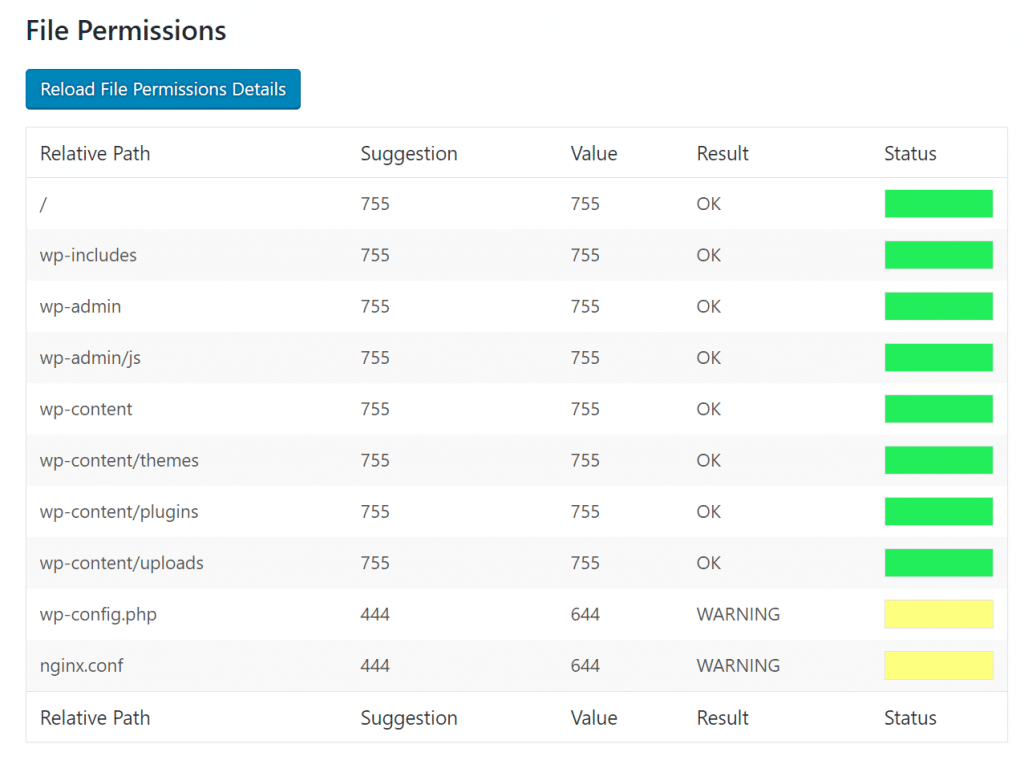
File permissions on both your installation and web server are crucial to beefing up your WordPress security. If permissions are too loose, someone could easily gain access to your site and wreak havoc. On the other hand, if your permissions are too strict this could break functionality on your site. So it is important to have the correct permissions set across the board.
File Permissions
- Read permissions are assigned if the user has rights to read the file.
- Write permissions are assigned if the user has rights to write or modify the file.
- Execute permissions are assigned if the user has the rights to run the file and/or execute it as a script.
Directory Permissions
- Read permissions are assigned if the user has the rights to access the contents of the identified folder/directory.
- Write permissions are assigned if the user has the rights to add or delete files that are contained inside the folder/directory.
- Execute permissions are assigned if the user has the rights to access the actual directory and perform functions and commands, including the ability to delete the data within the folder/directory.
You can use a free plugin like iThemes Security to scan the permissions on your WordPress site.
Here are some typical recommendations for permissions when it comes to file and folder permissions in WordPress. See the WordPress Codex article on changing file permissions for a more in-depth explanation.
- All files should be 644 or 640. Exception: wp-config.php should be 440 or 400 to prevent other users on the server from reading it.
- All directories should be 755 or 750.
- No directories should ever be given 777, even upload directories.
16. Disable File Editing in WordPress Dashboard
A lot of WordPress sites have multiple users and administrators, which can make WordPress security more complicated. A very bad practice is to give authors or contributors administrator access, but unfortunately, it happens all the time. It is important to give users the correct roles and permissions so that they don’t break anything. Because of this, it can be beneficial to simply disable the “Appearance Editor” in WordPress.
Most of you have probably been there at one point or another. You go to quickly edit something in the Appearance Editor and suddenly you are left with a white screen of death. It is much better to edit the file locally and upload it via FTP. And of course, in best practice, you should be testing things like this on a development site first.
Also, if your WordPress site is hacked the very first thing they might do is try to edit a PHP file or theme via the Appearance Editor. This is a quick way for them to execute malicious code on your site. If they don’t have access to this from the dashboard, to begin with, it can help prevent attacks. Place the following code in your wp-config.php file to remove the ‘edit_themes’, ‘edit_plugins’ and ‘edit_files’ capabilities of all users.
define('DISALLOW_FILE_EDIT', true);17. Prevent Hotlinking
The concept of hotlinking is very simple. You find an image on the Internet somewhere and use the URL of the image directly on your site. This image will be displayed on your website but it will be served from the original location. This is actually theft as it is using the hotlinked site’s bandwidth. This might not seem like a big deal, but it could generate a lot of extra costs.
The Oatmeal is a great example. The Huffington Post hotlinked a cartoon of his which consisted of multiple images and it racked up a whopping $1,000+ bill.
Prevent Hotlinking in Apache
To prevent hotlinking in Apache simply add the following code to your .htaccessfile.
RewriteEngine on
RewriteCond %{HTTP_REFERER} !^$
RewriteCond %{HTTP_REFERER} !^http(s)?://(www.)?yourdomain.com [NC]
RewriteRule .(jpg|jpeg|png|gif)$ http://dropbox.com/hotlink-placeholder.jpg [NC,R,L]
The second row defines the allowed referrer – the site that is allowed to link to the image directly, this should be your actual website. If you want to allow multiple sites you can duplicate this row and replace the referrer. If you want to generate some more complex rules, take a look at this htaccess hotlink protection generator.
Prevent Hotlinking in NGINX
To prevent hotlinking in NGINX simply add the following code to your config file.
location ~ .(gif|png|jpe?g)$ {
valid_referers none blocked ~.google. ~.bing. ~.yahoo yourdomain.com *.yourdomain.com;
if ($invalid_referer) {
return 403;
}
}
Prevent Hotlinking on CDN
If you are serving your images from a CDN then the setup might be slightly different. Here are some resources with popular CDN providers.
If your host doesn’t have backups there are some popular WordPress services and plugins which you can use to automate the process.
WordPress Backup Services
WordPress backup services usually have a low monthly fee and store your backups for you in the cloud.
- VaultPress (from the Automattic team, now part of Jetpack)
- CodeGuard
- BlogVault
WordPress Backup Plugins
WordPress backup plugins allow you to grab your backups via FTP or integrate with an external storage source such as Amazon S3, Google Cloud Storage, Google Drive, or Dropbox. We highly recommend going with an incremental solution so it uses fewer resources.
19. DDoS Protection
DDoS is a type of DOS attack where multiple systems are used to target a single system causing a Denial of Service (DoS) attack. DDoS attacks are nothing new – according to Britannica the first documented case dates back to early 2000. Unlike someone hacking your site, these types of attacks don’t normally harm your site but rather will simply take your site down for a few hours or days.
What can you do to protect yourself? One of the best recommendations is to use a reputable 3rd party security service like Cloudflare or Sucuri. If you are running a business it can make sense to invest in their premium plans.
18. Always Take Backups
Backups are the one thing everyone knows they need but don’t always take. Most of the recommendations above are security measures you can take to better protect yourself. But no matter how secure your site is, it will never be 100% safe. So you want backups in case the worst happens.
Most managed WordPress hosting providers now provide backups. Host SEO has five different types of backups, including automated backups that so that you can rest easy at night. You can even one-click restore your site.
Their advanced DDoS protection can be used to mitigate DDoS attacks of all forms and sizes including those that target the UDP and ICMP protocols, as well as SYN/ACK, DNS amplification and Layer 7 attacks. Other benefits include putting you behind a proxy which helps to hide your origin IP address, although it is not bulletproof.
Make sure to check out our case study on how to stop a DDoS attack. We had a client with a small e-commerce site running Easy Digital Downloads which got over 5 million requests to a single page within 7 days. The site typically only generated between 30-40 MB a day in bandwidth and a couple hundred visitors per day. But out of the blue, the site instantly went to between 15-19 GB of data transfer a day! That’s an increase of 4650%. And Google Analytics showed no additional traffic. So that is not good.
The client implemented Sucuri’s web application firewall on their site and all of the bandwidth and requests instantly dropped on the site (as seen below) and there hasn’t been a single issue since. So definitely a good investment and time saver if you are running into issues like these.
Summary
As you can see, there are numerous ways you can harden your WordPress security. Using clever passwords, keeping core and plugins up to date, and choosing a secure managed WordPress host are just a few that will keep your WordPress site up and running safely. For many of you, your WordPress site is your both your business and income, so it’s important to take some time and implement some of the security best practices mentioned above, sooner rather than later.
Have any important WordPress security tips that we missed? If so feel free to let us know below in the comments.
Categories
Subscribe Now
10,000 successful online businessmen like to have our content directly delivered to their inbox. Subscribe to our newsletter!Archive Calendar

| Sat | Sun | Mon | Tue | Wed | Thu | Fri |
|---|---|---|---|---|---|---|
| 1 | 2 | |||||
| 3 | 4 | 5 | 6 | 7 | 8 | 9 |
| 10 | 11 | 12 | 13 | 14 | 15 | 16 |
| 17 | 18 | 19 | 20 | 21 | 22 | 23 |
| 24 | 25 | 26 | 27 | 28 | 29 | 30 |
| 31 | ||||||
Recent Articles
-

Posted on : Jul 25
-

Posted on : Jul 07
-

Posted on : Apr 07
-

Posted on : Mar 19
Optimized my.cnf configuration for MySQL 8 (on cPanel/WHM servers)
Tags
- layer 7
- tweak
- kill
- process
- sql
- Knowledge
- vpn
- seo vpn
- wireguard
- webmail
- ddos mitigation
- attack
- ddos
- DMARC
- server load
- Development
- nginx
- php-fpm
- cheap vpn
- Hosting Security
- xampp
- Plesk
- cpulimit
- VPS Hosting
- smtp
- smtp relay
- exim
- Comparison
- cpu
- WHM
- mariadb
- encryption
- sysstat
- optimize
- Link Building
- apache
- centos
- Small Business
- VPS
- Error
- SSD Hosting
- Networking
- optimization
- DNS
- mysql
- ubuntu
- Linux